Community graphics
Discord Server Banner: Keep the Name Area Clear

A banner can look balanced as a standalone picture and become crowded when Discord puts the server name over it. Start with the space the interface needs, then place the artwork around that space.
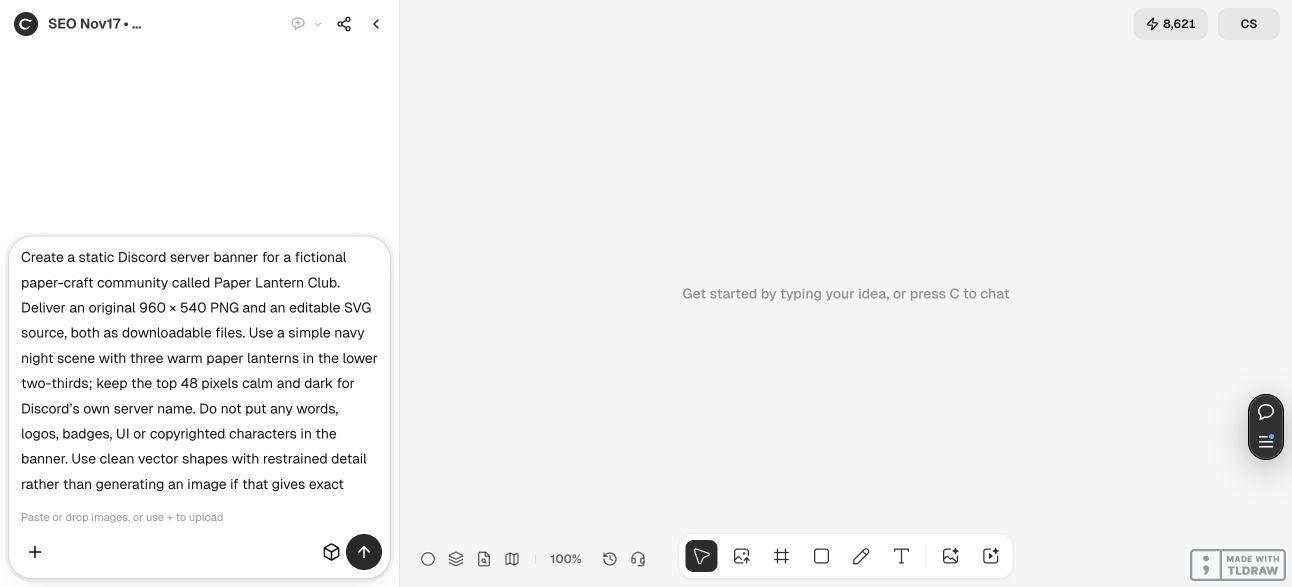
Discord’s server-banner guidance and a fictional Paper Lantern Club example made in Ciyo are the basis for this tutorial. The live Ciyo run produced a banner and a separate review image; we have not uploaded them to a Discord server. The aim is a usable static-image handoff, followed by a check in your own server’s interface.
Quick answer: make the banner and the review overlay separately
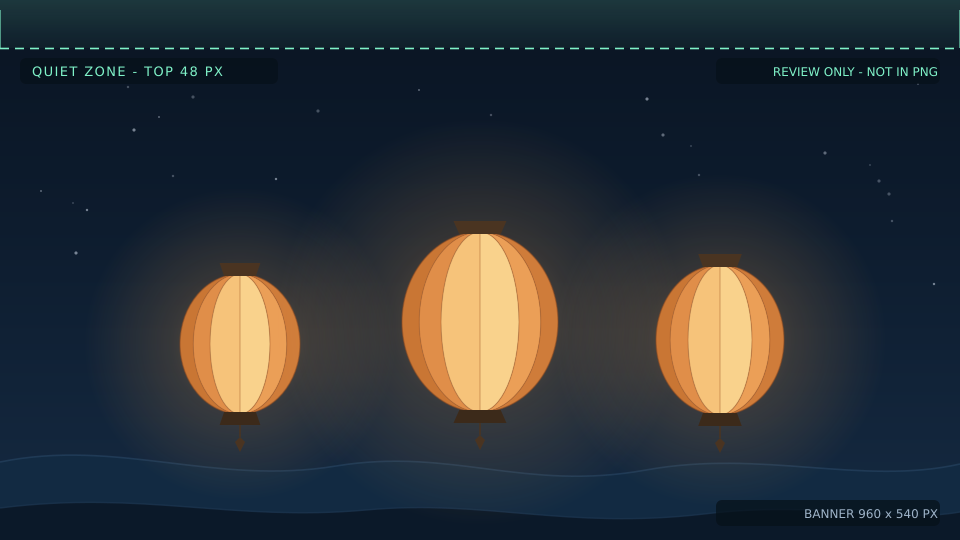
For this example, use a 960 × 540 static composition with a quiet upper strip and the lanterns lower in the frame. Keep words and logos out of the finished artwork. Discord supplies the server name; the separate review image shows where the reserved strip sits.
Work through the five steps below. The annotated proof is for checking the layout and should stay out of the upload folder.
| Step | Action | Keep for review |
|---|---|---|
| 1 | Confirm the server-banner slot is available | A static banner brief, separate from profile artwork |
| 2 | Set the composition and reserved strip | 960 × 540 frame; calm top 48 pixels |
| 3 | Create a clean image and a separate proof | Word-free banner plus annotated review |
| 4 | Inspect the actual export | Dimensions, source artwork and guide-free image |
| 5 | Check the banner in Discord | Your actual server name and the current preview |
1. Confirm that you are designing the server banner
A server banner is the image above the channel list. A personal profile banner serves a different placement, so do not send its crop instructions to the designer and expect the same result.
Discord’s help page describes static server banners for Boosting Level 2 and animated banners for Level 3, with a separate exception for Partner servers. Confirm the current slot and your permission to manage it before commissioning animation or troubleshooting an unavailable upload control.
For a volunteer craft community, a static design is a straightforward starting point: one scene, one export and one review decision. Animation adds timing and motion checks that this example does not cover.
2. Brief the picture around the name area
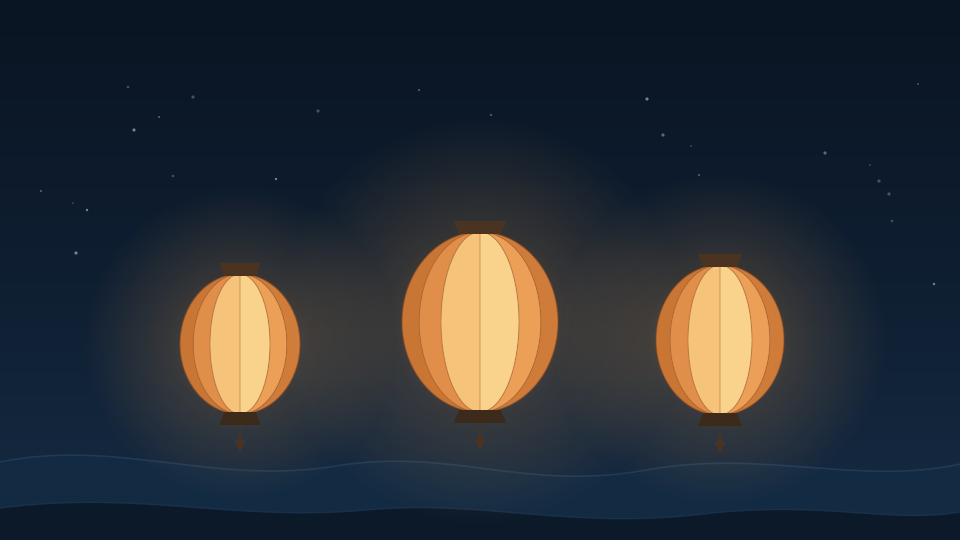
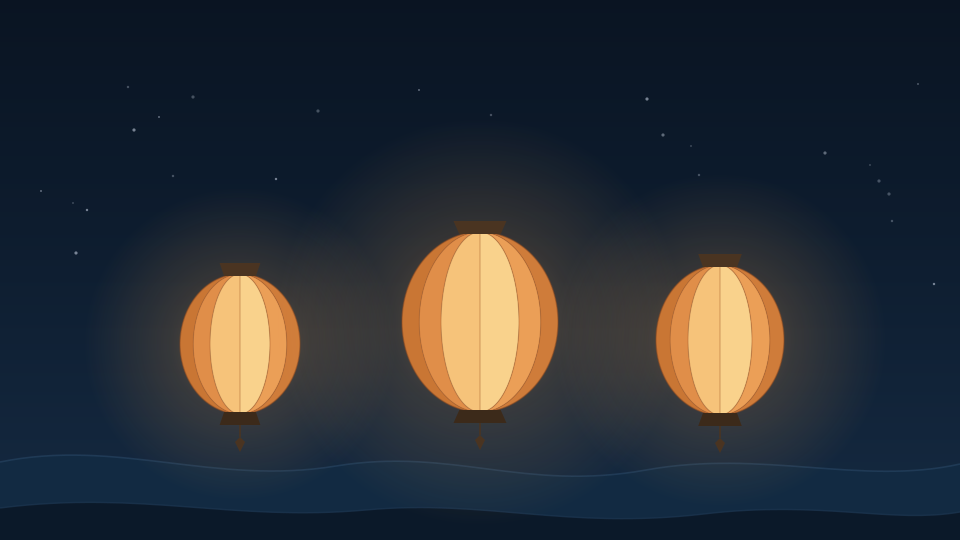
The fictional Paper Lantern Club brief asks for three warm lanterns against a navy night scene. Its identity comes from those shapes and colors rather than an extra wordmark.
Use the upper strip as a composition constraint from the start. Moving the whole scene down after approval can change the balance and cut into the foreground. Place the main forms lower, then leave enough surrounding space for the scene to remain recognizable at a smaller display size.
The 48-pixel strip here follows Discord’s published recommendation at the example’s 960 × 540 size. Treat it as a useful starting constraint and still inspect your own server-name overlay; a proof drawn outside Discord cannot establish every current interface layout.
Create a static Discord server banner for [community]. Make a 960 × 540 composition with [one recognizable subject] in the lower part of the scene. Keep the top 48 pixels calm for Discord’s own server name. Use [palette]. Do not add words, logos, badges or interface elements. Deliver a clean image and editable source, plus a separate annotated review showing the reserved strip. Keep the annotation out of the finished image. Do not upload or change a Discord server.3. Review a clean image and an annotated proof
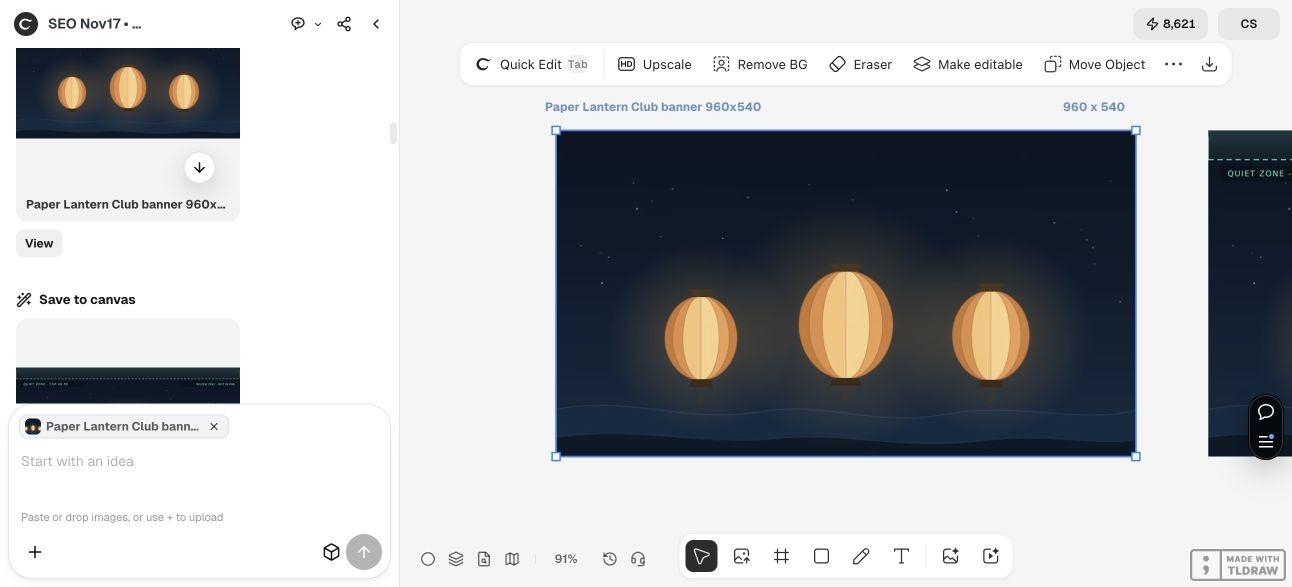
The live Ciyo run placed two images on the canvas: the word-free banner and an annotated version identifying the upper strip. That separation makes the handoff easier to judge. The clean file answers “What will I upload?” and the proof answers “What did I reserve?”
Compare the lantern silhouettes, their spacing and the contrast between the sky and the area where the server name will appear. The subject should be recognizable without a caption printed inside the image.
Ask for a specific revision when a check fails. For example, request more quiet sky while keeping the frame size and lantern appearance fixed. Avoid a broad “make it better” request that can change an already accepted composition. Ciyo’s Design agent reasoning is Billable LLM usage; using vector geometry for the picture does not establish a free total task.
4. Inspect the delivered export and editable source
The canvas metadata and downloaded original PNGs both measured 960 × 540. The banner’s top 48 rows contained only seven dark gradient colors, supporting the quiet-strip check. A canvas thumbnail or browser-optimized copy can use another format, so inspect the original export before uploading it.
Keep the clean export, source and annotated proof under distinct names. A filename such as paper-lantern-banner-clean.png is easier to distinguish from paper-lantern-banner-review than two files both called final.
Ciyo returned the editable SVG as a copyable code block in this run; it was not a separate SVG item in Generated Files. Source review caught a duplicated identifier, and Ciyo corrected it in the same project. We saved that corrected source, checked its dimensions and unique identifiers, and rendered it to confirm it opens. Keep this check separate from approval of the attractive canvas preview.
If you change the source, render and inspect the clean image again. Do not rename an SVG, AVIF preview or JPEG to .png and assume that converts its contents. Keep the original source until you have verified the replacement.
5. Check the current Discord preview before saving
Open the banner setting for the intended server and select the clean image. Compare the current preview with the proof: can you read the actual server name, recognize the scene and see the important outer shapes? Use the preview available in your account instead of assuming a browser mockup is identical.
Check the result in the display contexts your community uses. If an important feature is obscured, revise the artwork and inspect again. A quieter scene often needs fewer changes than an image that relies on small embedded labels.
This walkthrough stops at preparing and reviewing the artwork. It does not demonstrate a Discord upload, guarantee an account’s eligibility or establish a change in member engagement. For a different channel, prepare a placement-specific crop rather than stretching this file.
Discord server banner questions
What size should I start with?
Discord recommends at least 960 × 540 with a 16:9 ratio. This example uses exactly 960 × 540 so the reserved-strip dimensions can be inspected directly. Check the current upload interface before final delivery.
Should I put the server name in the artwork?
Discord’s banner guidance recommends avoiding logos and text. Let the interface display the name and use the picture to communicate the community’s character.
Is the annotated image the file to upload?
Use the clean artwork. The annotated version is a separate review aid; its guide lines and labels are not part of the intended banner.
Does an editable SVG mean I have a finished upload?
It gives you source artwork. You still need a suitable raster export, a check of its actual properties and a review in the intended server. In our Ciyo run the SVG was supplied as copyable source, so saving and opening it was an additional handoff step.
Was the example tested inside Discord?
No. It was created in a live Ciyo project and reviewed as artwork. No Discord server was changed. The final interface and permission checks belong to the server owner or manager.
Brief a banner around the space it must fit
Give Ciyo the community, subject, palette, exact frame and area to keep quiet. Review the clean artwork and source before using your server’s own upload preview.