Canvas workflow · Asset handoff
Export the Image—and Keep the Instructions That Made It

A teammate receives three similar mug images and a message saying ‘use the final one.’ None of the files explains which model created it, what was changed or whether the headline is included. The creative work may be finished, but the handoff is incomplete.
Ciyo's active-asset export menu separates the source file, metadata and prompt. This guide uses a fictional workshop image to build a small, understandable handoff package. It also shows why downloading an image source is different from exporting everything visible on the canvas.
Identify the actual asset before downloading
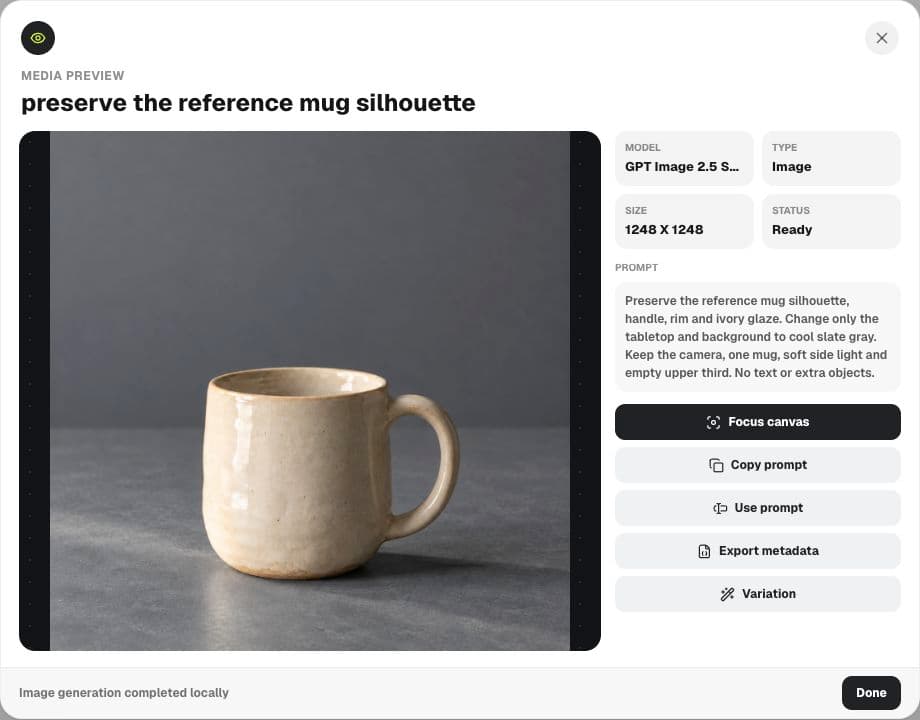
Open the intended image's preview and compare it with the version you approved. For Still ceramics, the selected result is the ivory mug with a cool slate background, created from a warmer reference. The warm version is still useful, but it is a different deliverable.
Check the model, size, status and prompt shown in the preview. A selected text object elsewhere on the canvas does not necessarily change the active generated asset. Read the active-asset label before using its export controls.
Choose the export that answers the handoff need
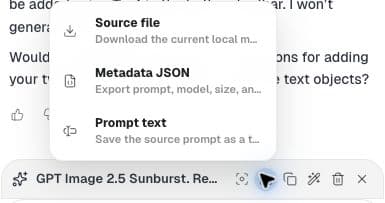
Open Export active asset. The menu in our session offered Source file, Metadata JSON and Prompt text. Each serves a different purpose; a prompt text file is not an image, and a metadata file is not an editable design document.
Download the source when the recipient needs the visual. Save the metadata or prompt when they need to understand or adapt the generation. Keep only information appropriate for the recipient; inspect exported metadata before sharing it outside your team.
| File or note | Purpose | Does not establish |
|---|---|---|
| Source image | The visual to place in another tool | Editable canvas text or a whole project |
| Metadata JSON | Recorded model, prompt, dimensions and placement | A complete reproducible model environment |
| Prompt text | Readable creative direction | Identical future output |
| Approval note | Chosen version and remaining decisions | Legal clearance or campaign results |
Open the downloaded source
Do not stop at the download click. Open the file and inspect the subject, crop and dimensions. In this demonstration, the Sunburst source downloaded as a 1248 × 1248 PNG. The earlier Flare image's preview reported 1254 × 1254, so assuming identical dimensions would have been wrong.
The downloaded source did not contain the separate ‘Make your first mug’ canvas headline. That is useful when handing an image to a slide designer, but insufficient if someone expects a finished social graphic. State which deliverable you are sending.
Keep the prompt with a short change note
The prompt alone may describe a change without identifying the starting reference. Add a short note that connects the selected output to the reference and the approved difference. For the mug, the change is the warm background becoming cool slate; the intended fixed details are the handle, rim, silhouette and ivory glaze.
Record known limitations plainly. This is a fictional generated mug, not a verified photograph of a product for sale. A real catalog asset would need comparison with authorized product photography and approval by someone who knows the product.
Still ceramics concept — slate-background version. Fictional AI-generated mug. Image source only; headline remains separate. Intended change: background and tabletop color. Review the mug outline, handle and glaze before use. Add the verified workshop details in the destination layout.Name files by purpose and version
Use names that tell the recipient what to do, such as still-workshop-slate-source-v1.png and still-workshop-slate-notes-v1.txt. Keep a matching version identifier across the package. These are suggested handoff names, not a required naming convention in Ciyo.
Avoid replacing an approved file with a different image under the same name during review. A teammate may already have placed the earlier version in a slide or draft. A visible new version makes the change easier to inspect.
Verify the destination once
Place the downloaded image in the actual destination and check its crop, scale and text relationship. A square source can be clipped by a wide slide placeholder. Keep the original source so you can change the placement without repeatedly recompressing a screenshot.
Complete the handoff with the source, the relevant generation record and a clear approval state. The goal is that the next person can use the file without reconstructing your conversation or guessing which asset was selected.
Export questions
Does metadata reproduce an identical image?
No. It preserves useful recorded information, but generation can vary and a metadata file is not a guarantee of deterministic output.
Is Source file a screenshot of my whole canvas?
No. In this workflow it downloads the active image source. Separate text objects and other canvas assets are not automatically part of that image.
Should I trust the preview's dimensions?
Use them to identify the asset, then inspect the downloaded file when exact delivery dimensions matter. Our source check confirmed a 1248 × 1248 PNG.
Make the next handoff clear
Choose the approved Ciyo asset, export its source and keep the prompt with a short review note.