GPT-6 Astra · Creative workflows
Create Presentations with GPT-6 Astra Using Your Own Template

A useful presentation workflow starts with your template and the decisions the audience needs to make. Give Astra the source facts, required slide types and visual constraints before asking for a polished deck. Then inspect the exported presentation in the application where it will be used.
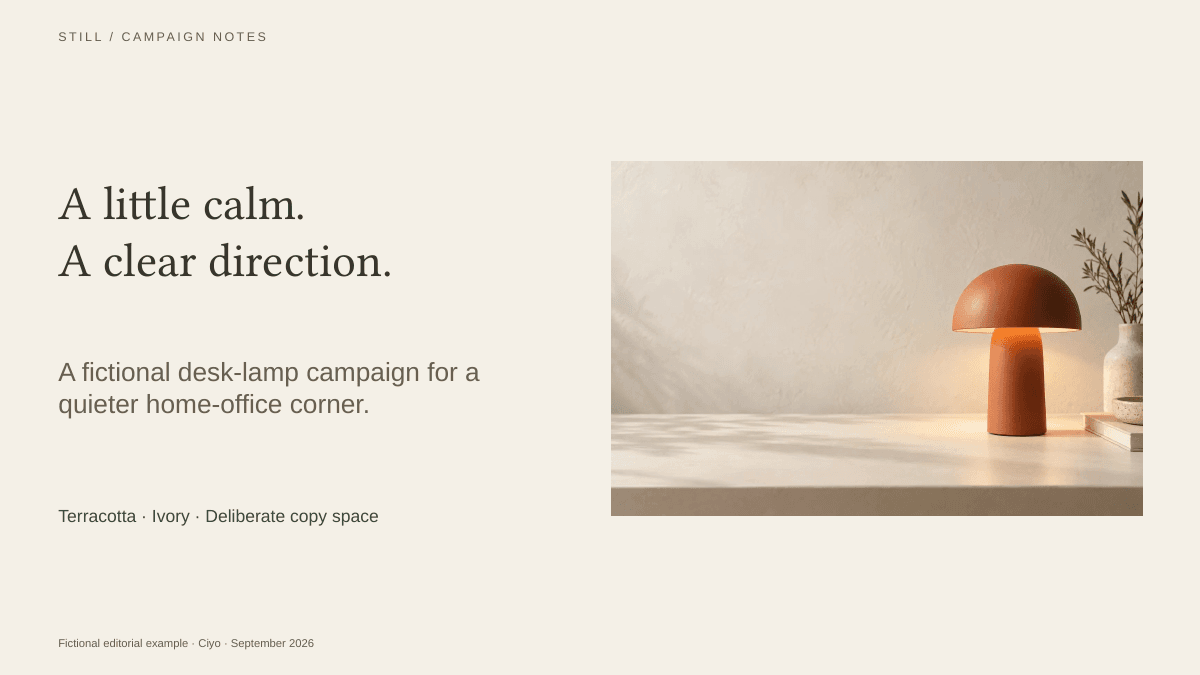
OpenAI's launch material includes presentation work, but a selected vendor demonstration cannot establish reliability for every template. This guide provides an original, editable three-slide Still campaign sample. It is a teaching artifact, not an independent Astra benchmark or a claim that Ciyo exports PowerPoint files.
Provide the template and the source facts separately
A template defines the visual system: slide size, title positions, typography, colors and reusable layouts. Your source material defines the claims. Mixing those into one vague instruction makes it easier for a model to invent a story that looks plausible but does not match the facts.
Attach the actual template when the environment supports file access. Explain which elements must remain editable and which images may be replaced. If the agent cannot inspect the file, ask for an outline and a list of missing inputs rather than accepting a claim that the template has been preserved.
| Input | Purpose |
|---|---|
| Template file | Preserve dimensions, layouts and visual conventions |
| Approved facts | Ground claims, figures and product descriptions |
| Audience and decision | Choose what each slide needs to explain |
| Asset folder | Use approved images at sufficient resolution |
| Delivery requirements | Specify editable PPTX, review images and any notes |
Approve the slide argument before decorating it
For a short campaign presentation, use one slide to introduce the direction, one to explain the asset plan and one to list the decisions still needed. Each slide should have a job. A beautiful page with several unrelated messages can be harder to present than a plain slide with a clear argument.
Write a one-sentence takeaway for every slide. If you cannot explain what the audience should understand or decide, revise the outline before spending time on layout. Mark missing commercial facts explicitly; a sample deck should not invent a price just to fill a box.
Using the attached template and approved source facts, create a three-slide campaign presentation: creative direction, asset plan, decisions required. Preserve slide dimensions, title hierarchy and palette. Keep headings, body copy and the asset table editable. Use only supplied facts; mark missing information as a decision needed. First show the slide takeaways, then create the deck. Inspect the exported slides for overflow, crop and readable type. Report any template feature or export you could not verify.Inspect the sample deck's editable parts
Download the Still campaign sample and select its headings, body text and asset table in PowerPoint or a compatible editor. The product photograph is a raster image; the surrounding text and shapes remain separate. That distinction is what makes later copy and layout revisions manageable.
The sample uses the same fictional lamp illustration as the website guide. It shows how a small asset set can support several formats. It is not a real launch plan, and its unresolved decisions are intentionally visible.
Separate a visual spread from an editable slide
A generated magazine-style page can be useful inspiration for composition, but it may be a single flat image. That makes it difficult to update numbers, translate copy or apply a client's template. Ask what the delivered file actually contains before calling it an editable presentation.
The visual-page discussion below is relevant to layout and consistency. It is not evidence that its outputs preserve PowerPoint master layouts, editable charts or speaker notes. Those are separate requirements to test in your own deck.
Review the export in the destination application
Open the actual PPTX and check all slides, not just the first. Font substitutions can alter wrapping. Images can crop differently, and a chart that looks fine in a preview may be a non-editable screenshot. Compare against the original template where fidelity matters.
Try changing the longest headline and one table cell. If a routine edit breaks the layout, simplify it before handing the deck to a colleague. For a live presentation, also inspect the slides at the size and display you expect to use.
| Check | What to inspect |
|---|---|
| Facts | Every figure and claim matches the supplied source |
| Editability | Required text, tables and shapes can be selected separately |
| Layout | No clipped text, accidental overlap or unreadable captions |
| Template | Dimensions, type hierarchy and recurring elements match |
| Delivery | The actual file opens in the intended presentation app |
Build the image set around the deck's needs
Request images for the specific slide layouts you need: a wide cover, a detail crop and a simple supporting visual. Keep their lighting and subject identity consistent so the deck feels like one campaign. Leave space for live text where the template requires it.
Ciyo can help create the images and visual variations used in that presentation. Assemble and validate the editable deck in the appropriate presentation workflow; this article does not imply a Ciyo PowerPoint export feature.
Put your visual brief to work
Create the image assets your presentation needs in Ciyo, then place them into your approved slide template.