GPT-6 Astra · PowerPoint
GPT-6 Astra PowerPoint: Make Slide Images That Share One Style
A deck looks planned when its images share light, palette and framing, and when each image leaves space for the words on that slide. Generating one picture at a time without a shared rule gives you four different styles and text that fights the background.
This guide plans the images for a fictional café's four-slide catering pitch with GPT-6 Astra, then generates two of them in Ciyo. We ran it on September 19, 2026; the screenshots show the actual answer and results. The words stay in PowerPoint, where you can edit them.
Decide what the images do on each slide
Write the slide list first and decide that all text will be added in PowerPoint. Text inside a generated image is hard to edit and can contain errors, while a real text box can be changed until the meeting starts.
Our fictional Juniper Lane Café deck had four slides: a title, what we deliver, how ordering works, and contact.
I'm building a 4-slide 16:9 PowerPoint deck for a fictional neighborhood café, Juniper Lane Café, pitching office coffee catering to local companies. Slides: 1 title, 2 what we deliver, 3 how ordering works, 4 contact. I will add all words in PowerPoint myself. Write one shared style line every slide image must follow, then one image prompt per slide that says where the empty text area is. No words inside the images. Do not generate yet.Get one style line and a text area per slide
Astra wrote a single style line for every image: 16:9 editorial café photography, warm cream and muted sage, natural oak, soft morning window light, subtle film grain and generous negative space, with no words, logos or marks. Each slide prompt then placed the props and named the empty area: the left 55% for the title slide, the right half for the offering, and the upper 70% for the three ordering steps.
Naming the empty area as a percentage is the useful part. It matches how you will place the text box and makes the result easy to check.
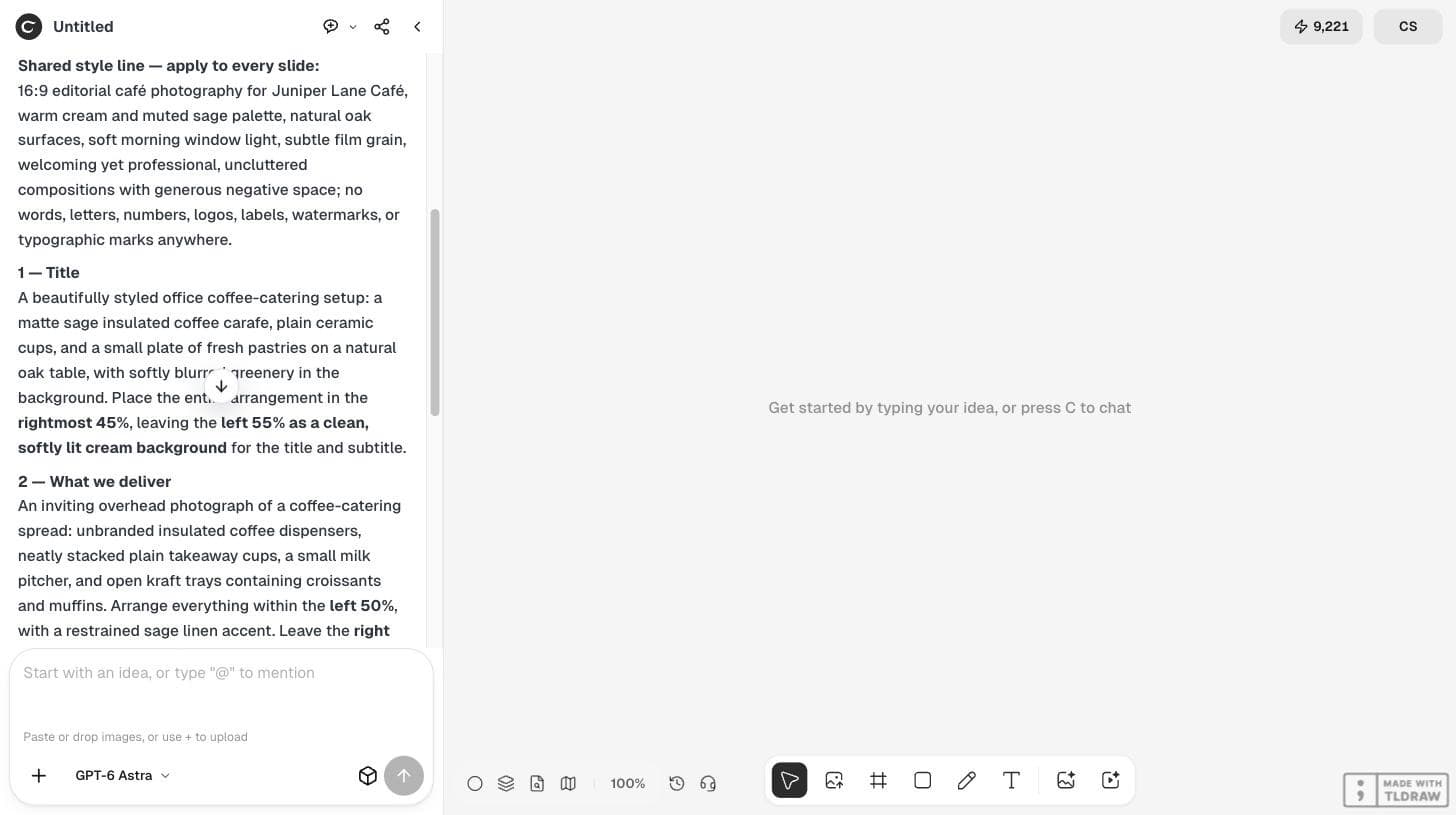
Generate with the style line in front of every prompt
In Ciyo's Image Generator we chose GPT Image 2.5 Flare at 16:9 and pasted the style line followed by one slide prompt. Each 16:9 image showed a quote of 2 credits in our run, and the balance fell by 2 credits for each.
Keep the style line word for word in every prompt. If you change it for one slide, you have started a second style.
| Slide | Props | Empty text area |
|---|---|---|
| 1 Title | Sage carafe, cups, pastries on oak | Left 55% |
| 2 What we deliver | Overhead catering spread | Right 50% |
| 3 How ordering works | Notebook, carrier, cup tray along the bottom | Upper 70% |
| 4 Contact | Two cups, linen napkin, small vase | Planned by Astra; not generated in this demonstration |
Compare the slides side by side
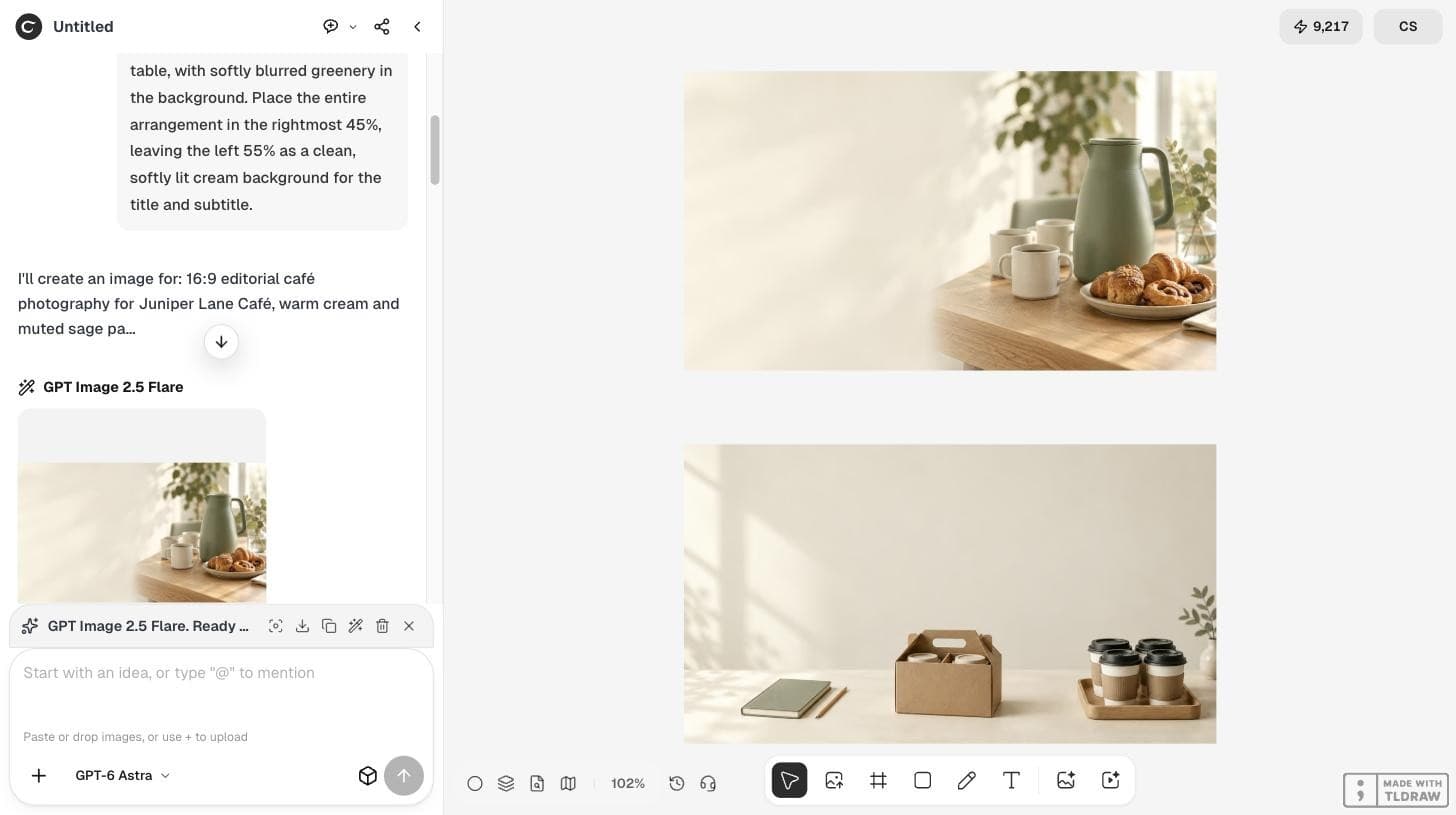
Place the images next to each other before you build the deck. Our title slide kept the arrangement in the right part of the frame with a clean cream area on the left, and the ordering slide kept its three small prop groups along the bottom with an empty upper area. Both used the same cream, sage and oak with the same soft light.
One difference showed up: the takeaway cups on the ordering slide had black lids, which the style line did not mention. Small off-palette details like this are easy to fix with a one-line edit or by adding the detail to the style line.
Place the text in PowerPoint and check it
Insert each image as a full-bleed background and put the title and body text in the planned area. Check the slide at presentation size and on a laptop screen: the text must not cross a prop, and the contrast must hold in the brightest part of the image.
If a text box does not fit, change the text or regenerate with a larger empty area. Do not squeeze the words into the picture.
Other presenters are testing a different route. On September 13, 2026, a Reddit user in r/ChatGPTPromptGenius described making two hackathon decks by asking ChatGPT to generate whole slides as gpt-image-2.5 images in about 30 minutes each. That is fast for a one-off demo; background images with real text boxes are easier to correct and reuse.
A user's workflow for generating whole slides as images in ChatGPT. It does not involve Ciyo; the text-area method in this guide is our own approach.
Reuse the rule for the next deck
Save the style line with the deck. For the next pitch or a new slide, send the same line with a new slide prompt, and the new image will match the old ones more closely than a fresh description.
Keep the images text-free. You can translate or update a deck in minutes when the words live in PowerPoint.
Slide image questions
Should the text be inside the generated image?
For a deck you will edit, no. Put the words in PowerPoint text boxes so you can change them and avoid spelling errors in the image.
How much did each slide image cost?
In our run, each 16:9 GPT Image 2.5 Flare image showed a 2-credit quote. Check the button for the current price.
Did GPT-6 Astra make the images itself?
In this demonstration Astra wrote the style line and prompts, and we generated the images in Ciyo's Image Generator.
Plan your deck images
Ask GPT-6 Astra for one style line and a text area per slide, then generate the images in Ciyo.