Photo editing · Move Object
Move an Object in a Photo with AI Without Reshooting
Sometimes the photo is right except for one placement. A cup sits where the headline should go, or a prop crowds the product. Moving it with AI saves a reshoot, but only if the old spot is repaired convincingly and nothing else changes.
This guide moves a pencil cup across a fictional Fold notebook photo with Move Object in Ciyo. We ran it on September 18, 2026. At the time, the Run button showed 7 credits. The most useful lesson came from the first attempt: the selection must include the destination as well as the object.
Understand how Move Object works
Move Object edits only the area you select. It is not a drag-and-drop tool: after you draw the selection, Ciyo fills a text field with a short description of what it found, and you edit that text into an instruction. The model then redraws the selected area to match.
That has one important consequence. If you select only the object, there is no room inside the selection to move it to. Select a region that contains both the object's current position and its new position.
Select the object and its destination
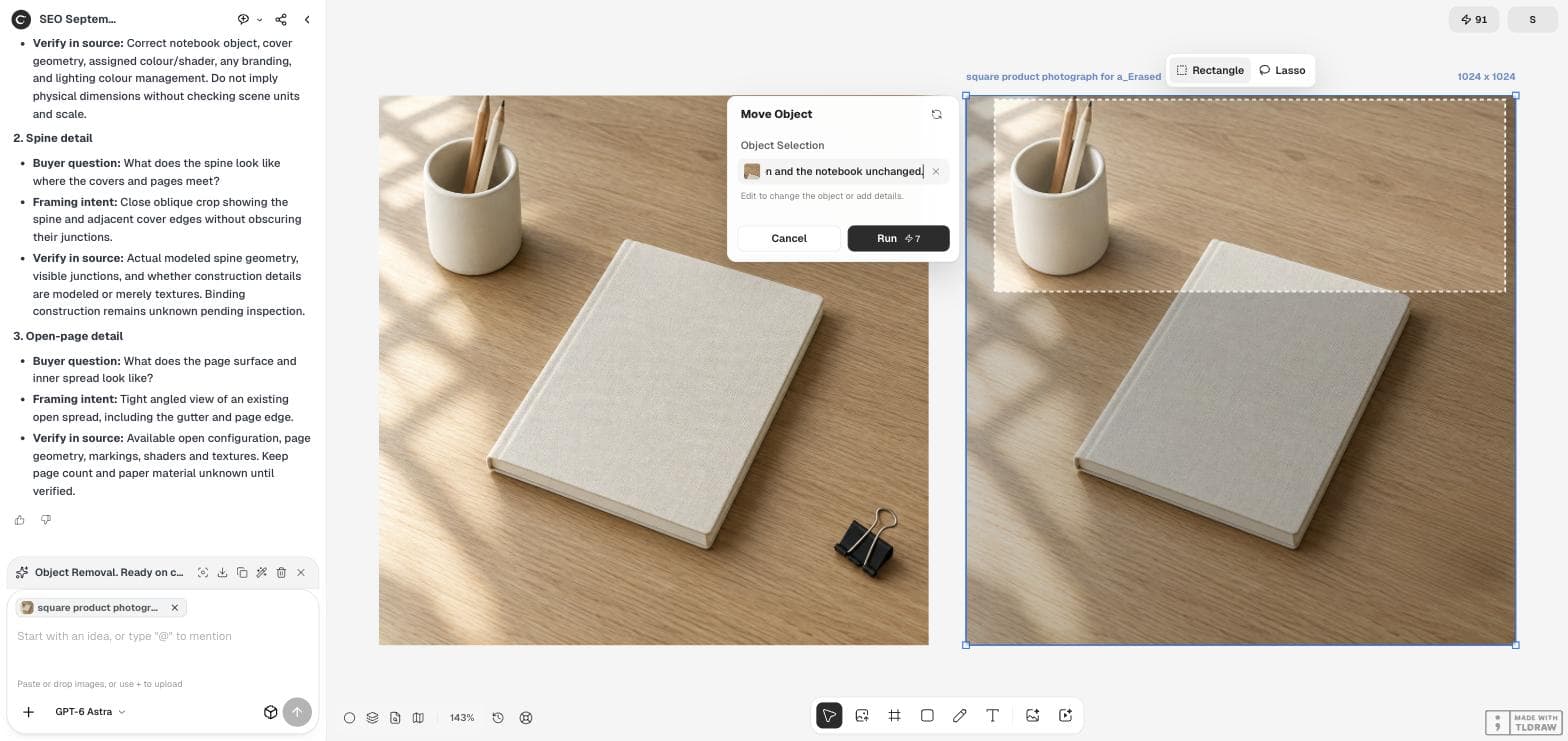
Select the photo, choose Move Object and pick Rectangle or Lasso. We first drew a tight box around the pencil cup; Ciyo described it as "white ceramic pencil holder". We then redrew the box as a wide band across the top of the photo, from the cup to the upper right corner, where we wanted it to go.
Keep the band clear of anything that must not change. Our band touched the top corner of the notebook, so the instruction named the notebook as unchanged.
Write the move as an instruction
Replace the description with a sentence that says where the object goes, what fills the old spot and what must stay the same. Mention size and shadow direction, because a moved object that changes scale or casts light the wrong way looks pasted in.
Move the white ceramic pencil holder and its two pencils to the right end of this area, near the upper right corner. Fill its old spot with matching oak desk grain and window light. Keep its size, shadow direction and the notebook unchanged.Review the old spot first
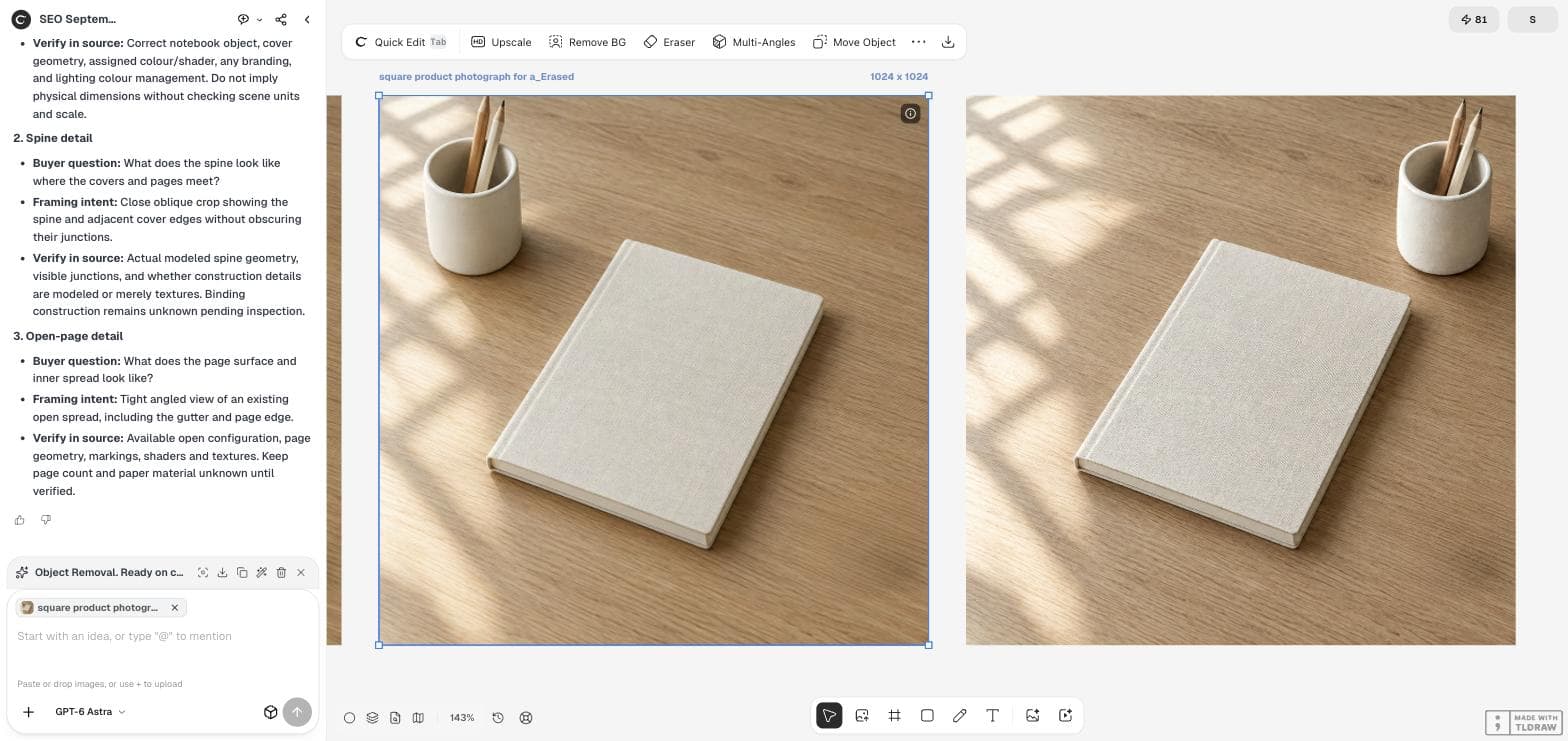
The result appeared next to the source with the cup in the upper right corner. The old spot was filled with desk grain and light, and the notebook was unchanged. The cup kept its shape and size.
Look closely at the whole band, not just the moved object. The model redrew the window-light pattern across the selected area, so the shadows in the top left no longer matched the original photo exactly. For a product page that may be fine; for a set of matching photos it may not.
Check the details that give a move away
A moved object is convincing only when it belongs to the scene's light and perspective. Use the checklist below, and compare with the original at the same zoom level.
| Check | What to look for |
|---|---|
| Old spot | Continuous texture, no ghost outline or leftover shadow |
| Scale | The object is the same size relative to the product |
| Shadow | Falls in the same direction as other shadows |
| Perspective | Viewed from the same camera angle as the rest of the scene |
| Selected band | Light and texture changes outside the object |
| Unselected areas | The product and everything outside the band unchanged |
Pick the right edit for the job
Move Object is for relocating something that should stay in the picture. To delete a distraction completely, the Eraser is simpler and cheaper. To change the look of one thing without moving it, such as a cover colour, use a Quick Edit instruction.
Whichever you use, keep the original next to the result. Every edit in Ciyo appears as a new image, so you can compare and go back.
Move Object questions
Can I drag the object to a new place?
Not in the demonstrated version. You select an area and describe the move in text; the model redraws the selected area.
Why include the destination in the selection?
Move Object edits only the selected area. A selection around the object alone gives the model no space to place it somewhere else.
What did the move cost?
The Run button showed 7 credits on September 18, 2026. Check the button for the current cost.
Fix the placement, keep the photo
Select the object and its new spot in Ciyo, describe the move, and review the result beside the original.