Practical design workflows
White-on-White Product Photography: Keep Edges and Surface Detail

A white mug can look gray against a white page, then lose its rim and surface texture when you brighten the whole image. Those are two different adjustments: the background needs a clean presentation, while the product still needs tonal variation to show its shape.
This guide combines a photographer’s lighting guidance with a source-image workflow in Ciyo. Our editorial example uses a licensed white-mug photograph by Bec R.; it is not a physical product shoot we conducted. The useful test is whether the visible rim, handle opening and subtle surface detail survive removal and placement on a white background.
Quick answer: separate the object from the background
Choose a source with visible subject detail, isolate the background, inspect the cutout on contrasting colors, and only then place it on white. Keep the original available throughout.
| Symptom | Likely next step | What to avoid |
|---|---|---|
| Texture disappears after brightening | Reduce the global adjustment; treat the background separately | Inventing texture over clipped highlights |
| Pale outline on dark backgrounds | Inspect and refine the mask boundary | Hiding the halo by viewing only on white |
| Handle opening stays green | Check internal cutout regions | Assuming the outer silhouette proves a complete mask |
| Product appears to float | Review the real contact shadow | Adding a heavy shadow unrelated to the lighting |
Capture detail before trying to recover it
A white object is not uniformly white in a useful photograph. Gradations describe the curve, rim, folds or surface. Separate background lighting from subject lighting where possible, and inspect the brightest parts while shooting. If the capture contains only featureless white in an important area, an editing tool cannot verify the missing surface.
Photographer Dave Montizambert’s explanation of white objects on white backgrounds addresses the lighting relationship behind this problem. Use that guidance to improve the capture before treating background removal as a rescue for every exposure issue.
Choose a source with difficult edges you can inspect
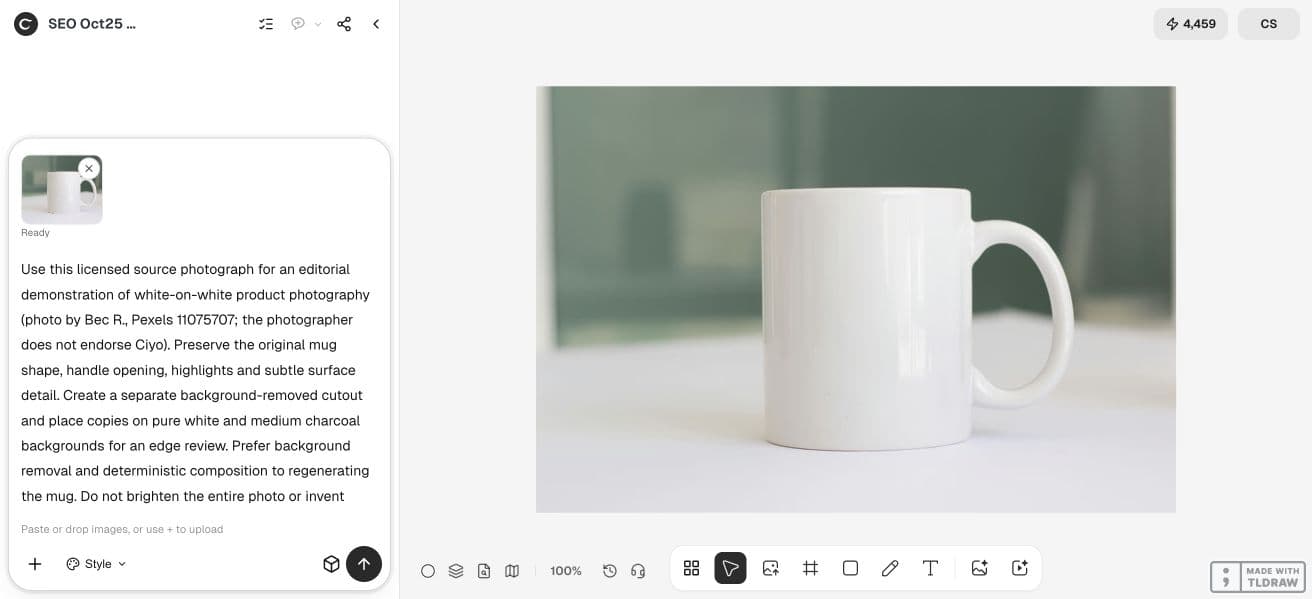
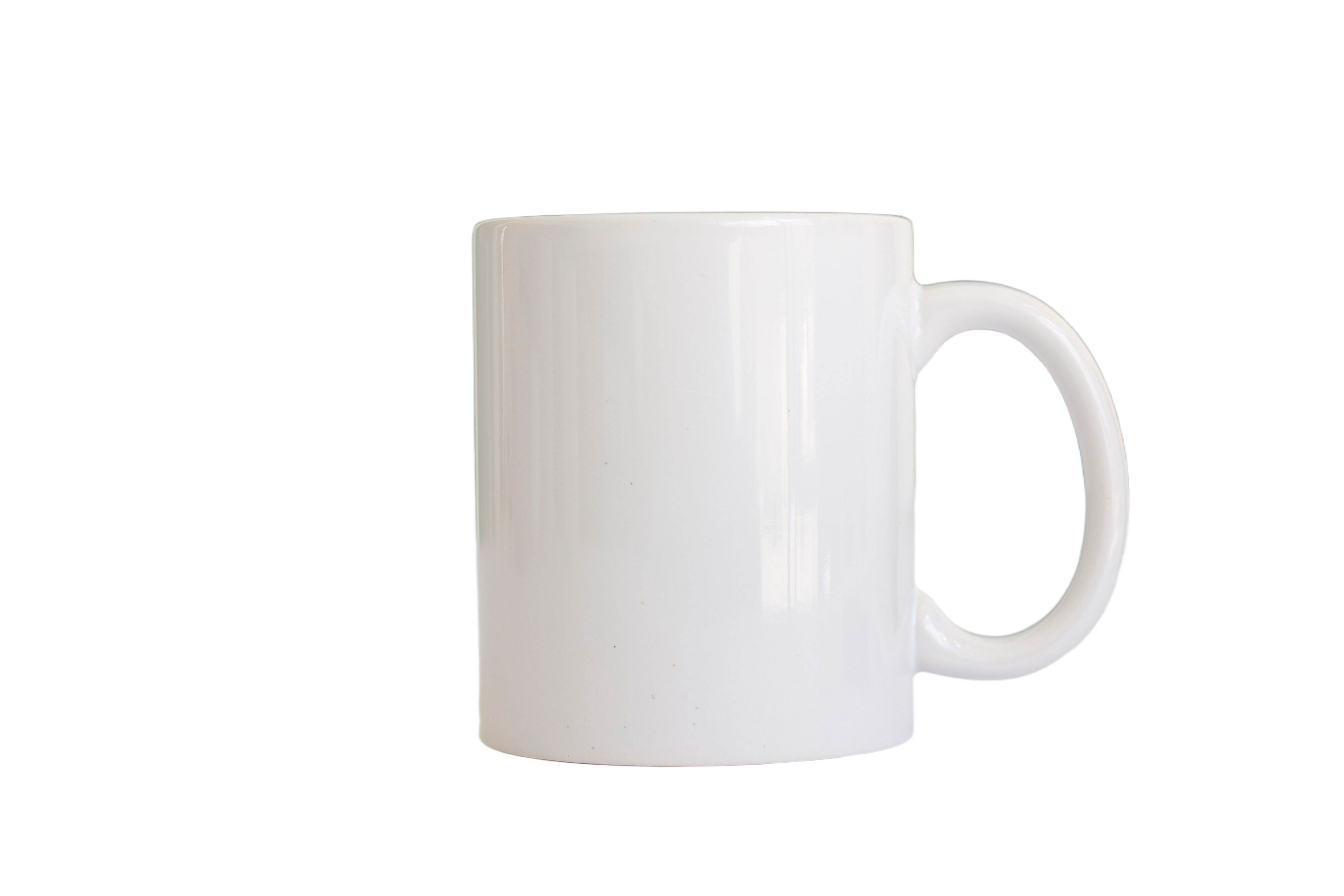
Our reference is Bec R.’s white ceramic mug photograph on Pexels. The pale mug sits on a light surface against a soft green background. Its rim, handle opening and slight surface variation provide specific details to check. The photographer does not endorse Ciyo; the image is an attributed editing example.
Keep the original at its available resolution. Name three or four inspection points before processing it. For a white shirt, those points might be the collar edge, a folded seam and fabric texture. For this mug, the inner handle edge matters as much as the outer silhouette.
Remove the background while keeping the source
Import the photograph into Ciyo and create a separate cutout. Preserve the original on the canvas so that a changed edge is easy to recognize. Background removal should isolate an existing object; regenerating the mug introduces an unnecessary identity check.
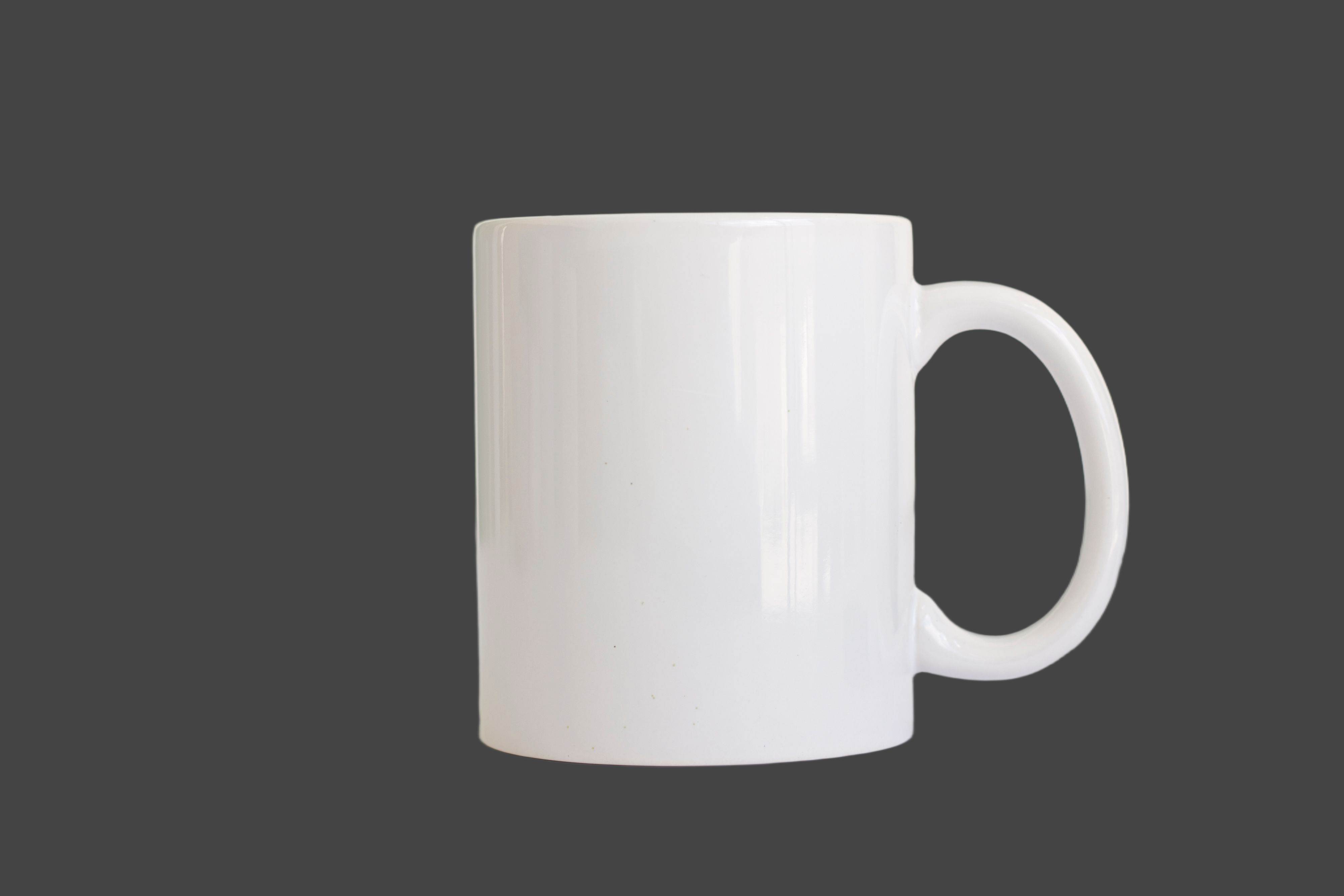
Ask for contrasting review backgrounds as separate compositions. A dark version exposes pale halos, while a white version shows whether the edge becomes too faint. Neither view alone is sufficient. This prompt makes those outputs explicit without claiming that the first mask will be perfect.
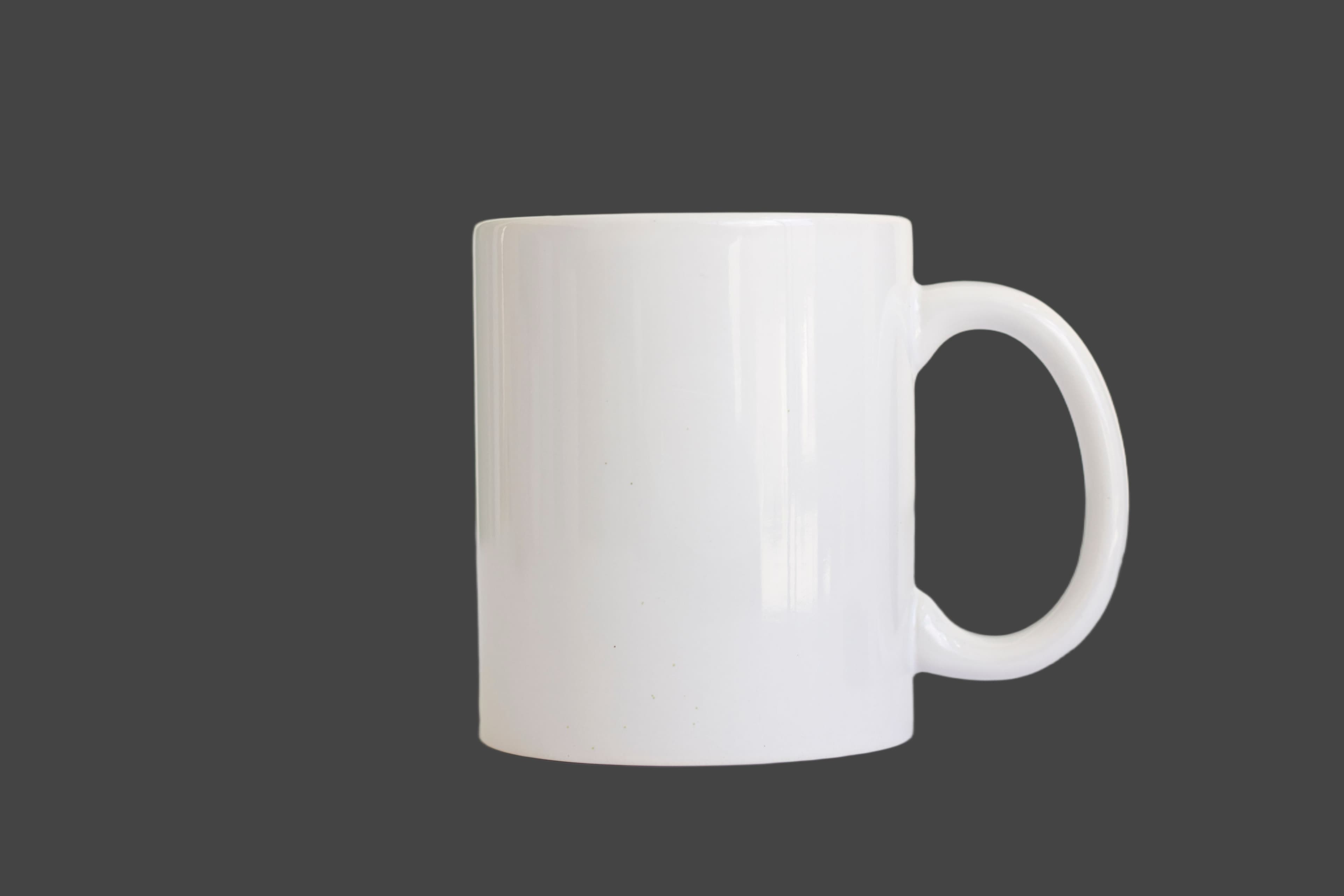
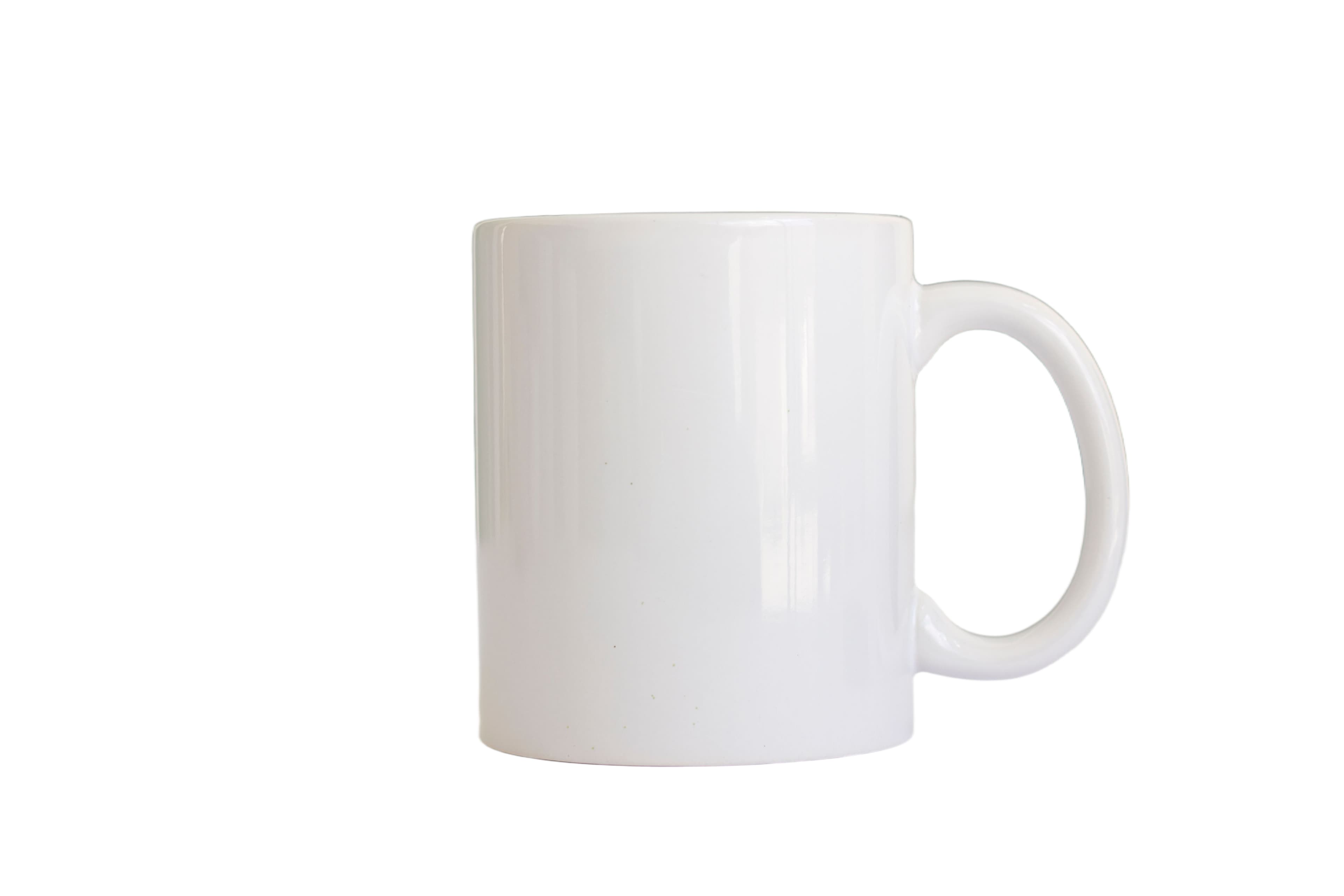
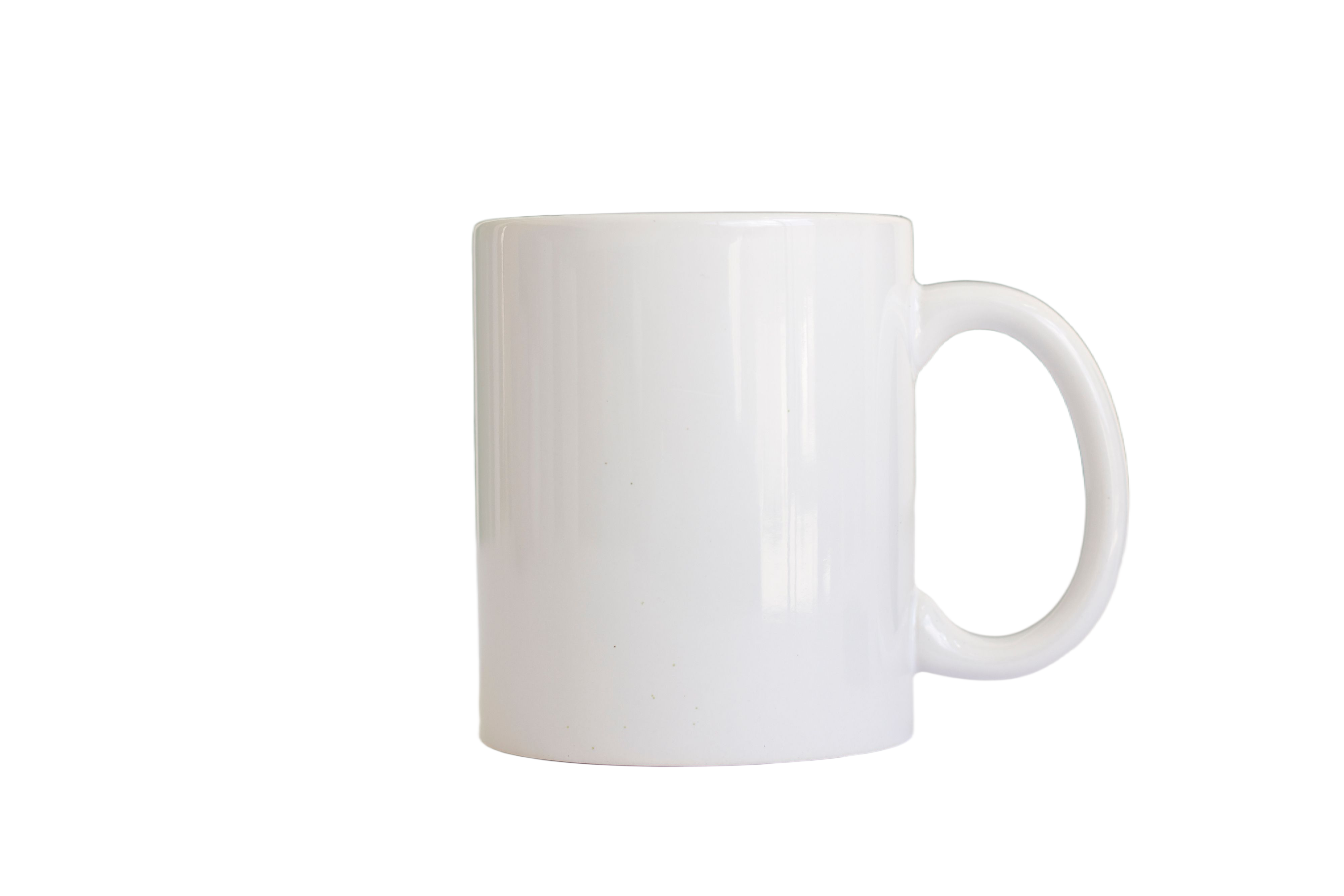
In our live run, a general image-edit attempt stopped at a creative-input check. The separate Remove Background operation produced a cutout, which was then composited on white and charcoal. These comparisons came from the same cutout; the mug was not regenerated for each background.
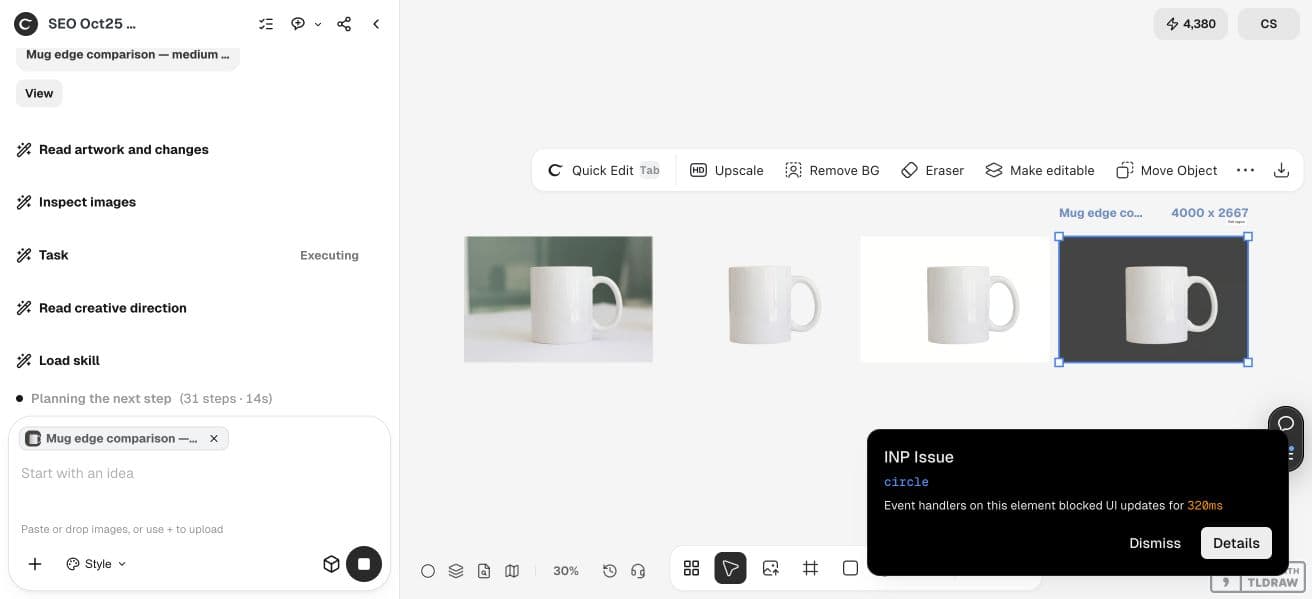
Use the attached product photograph. Preserve the mug shape, handle opening, highlights and subtle surface detail. Create a separate background-removed cutout, then place copies on pure white and medium charcoal backgrounds for inspection. Prefer background removal and deterministic composition to regenerating the object. Keep the original. Explain any visible halo, missing edge, filled opening or lost surface detail. Save separate comparison images.Inspect outer edges and internal openings
Compare the cutout at the source’s detail scale, then at the intended listing size. Look for a green fringe, a hard clipped rim, an opening filled with background pixels or a handle made thinner by the mask. On a pale object, a small masking mistake can change how the construction reads.
Check texture separately from the silhouette. A clean outline does not establish that a glossy highlight, subtle fleck or surface transition survived. If a generated edit changes those details, return to the source. Do not describe newly synthesized texture as recovered photographic information.
The downloaded result retained the handle opening, the main outline and small surface flecks. A slight green tint remained along parts of the left and upper edge, inherited from the source. At our review scale, the charcoal version did not show a broad white halo, but the residual tint still deserves refinement before a demanding catalog handoff.
Place on white without erasing the product
After the mask passes, judge the object on the intended white background. Leave enough natural tonal range for the product to remain legible. A gentle gray transition on a curved white surface can be useful shape information, not a defect to eliminate.
Treat a contact shadow as a separate decision. Match it to the visible lighting and surface rather than adding a dark generic oval. A marketplace may have specific requirements, so check the chosen channel before delivery. There is no single shadow treatment that suits every catalog, listing and editorial layout.
Our comparison files intentionally contain no reconstructed contact shadow, so the isolated mug floats. That makes them useful for reviewing the mask, but they are not finished lifestyle or catalog compositions.
Export and review the file on its real background
Save the cutout with transparency when the destination supports it, and a separate white-background version when needed. Open the exported file rather than relying only on a canvas thumbnail. Confirm its dimensions and the actual background treatment before handoff.
Keep the source, mask and comparison views together. If the dark-background check reveals a defect, fix the cutout instead of covering it with a white backing and calling it finished. The accepted result should preserve the product across backgrounds, with any unresolved limitations recorded.
Frequently asked questions
Should a white product be pure white everywhere?
No. Gradations and highlights describe its shape and material. Making every subject pixel pure white can erase that information.
Why inspect the cutout on charcoal?
A contrasting background makes pale halos, missing edges and incomplete internal openings easier to see. Review on white as well because that is the intended presentation.
Can AI recover clipped texture?
It may synthesize plausible texture, but that is not verified recovery of the real surface. Use a better source or reshoot when the detail matters.
Is a white background enough for marketplace approval?
No. Requirements vary by marketplace and product category. Check the destination’s current specifications and inspect the actual exported file.
Check the edge before brightening the subject
Use Ciyo to keep the original, create a separate cutout and compare it on light and dark backgrounds.