Pixel art · Tested
Turn a Photo into Pixel Art with AI, Then Make It Real Pixel Art
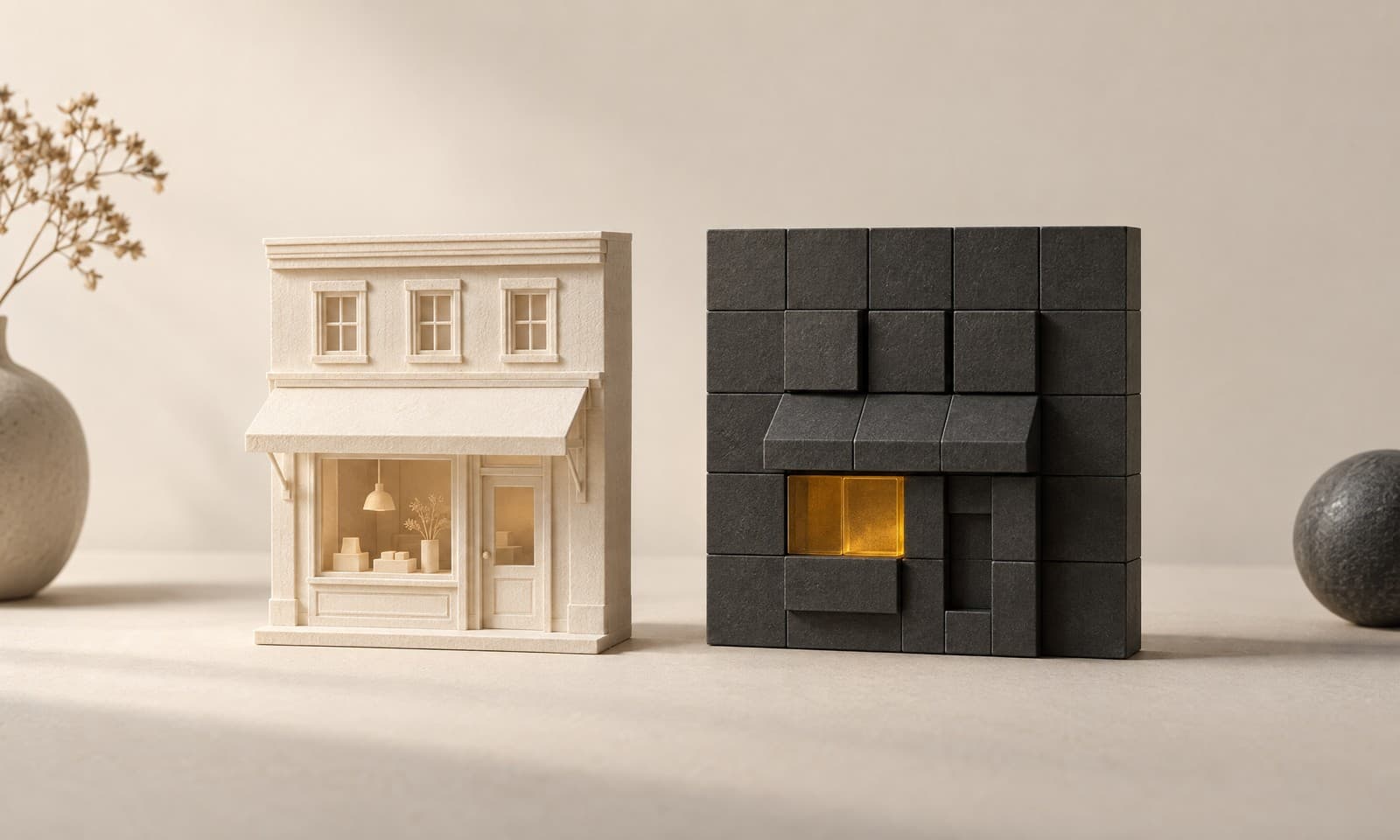
An image model can turn a photo into something that looks like pixel art in under a minute. Look closer and it is usually a painting of pixel art: soft block edges, uneven block sizes and tens of thousands of colours.
On September 27, 2026 we turned a photo of Rook & Rabbit, a fictional board-game café, into a pixel-art profile picture in Ciyo. This guide shows the prompt, the two settings that mattered and the short fix that turned the result into a true 64 × 64, 16-colour file.
Decide what the pixel art is for
Our café wanted a square profile picture for Instagram and a small shop icon, drawn on a 64 by 64 grid with 16 colours. Those three numbers — shape, grid and palette — are the brief. Everything else is style.
We used a generated stand-in for the owner's own photo: the shop front at dusk with a door, a lit window, a chalkboard, a plant and a bicycle. With your own photo, upload it to the canvas instead.
| Decision | Our choice | Why it matters |
|---|---|---|
| Shape | Square (1:1) | Profile pictures are cropped to a circle inside a square |
| Grid | 64 × 64 pixels | Small enough to read as pixel art, big enough for a shop front |
| Palette | 16 colours | A fixed palette is what makes pixel art look deliberate |
| Lettering | None | Letters do not survive at 64 pixels wide |
The first attempt: right look, wrong file
We opened the Image Generator with GPT Image 2.5 Flare, added the photo as a reference image and asked for 64 × 64 pixel art with hard square pixels, 16 colours and a plain sign with no lettering. It cost 3 credits.
The picture looked like pixel art, but it failed three parts of the brief. It came back landscape, 1,440 × 1,072, because the ratio was left on auto. It kept the “Rook & Rabbit” lettering. And it held 173,508 distinct colours in blocks 12 to 14 pixels wide — roughly 110 × 82 blocks, not 64 × 64.
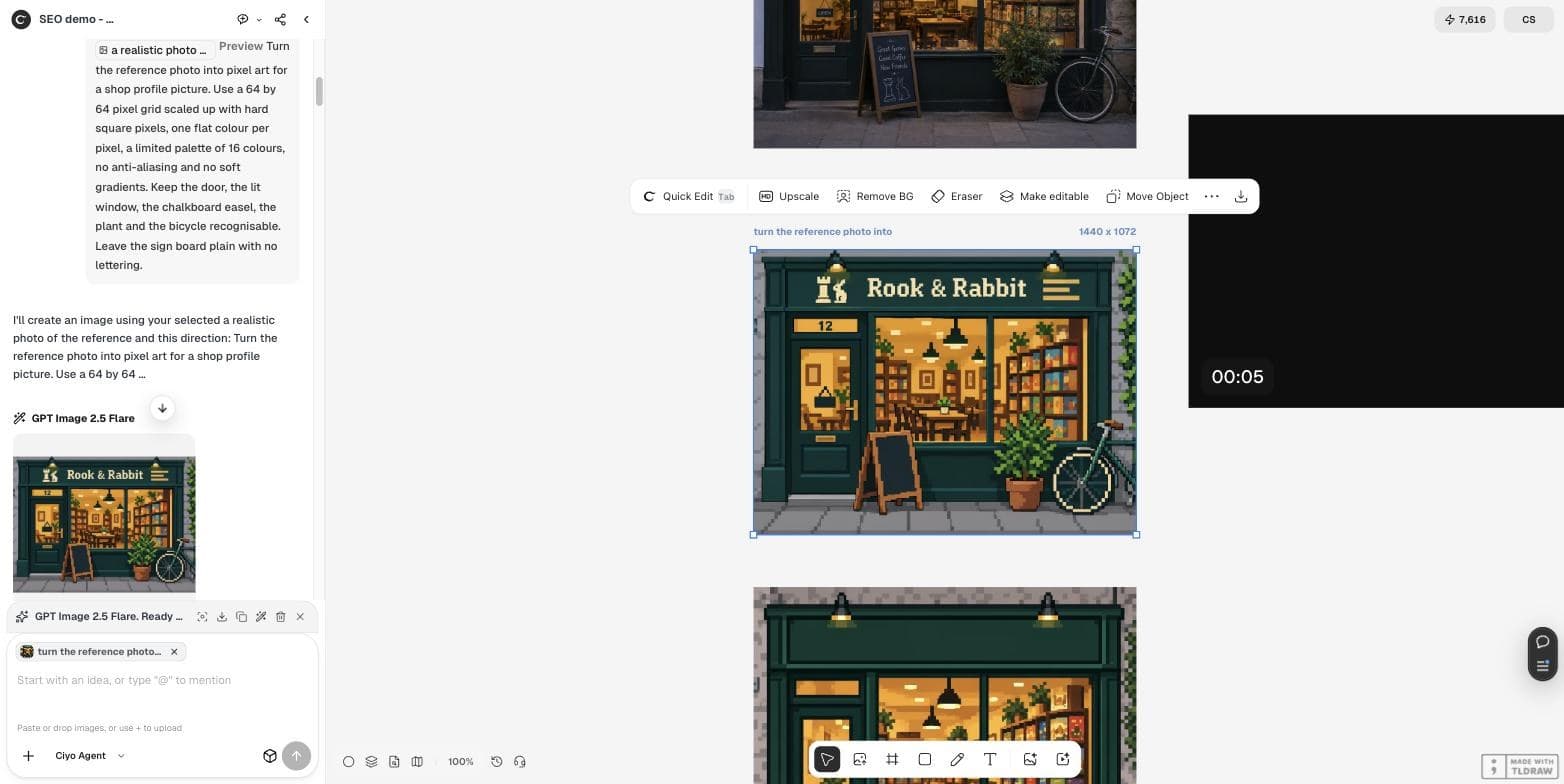
Turn the reference photo into pixel art for a shop profile picture. Use a 64 by 64 pixel grid scaled up with hard square pixels, one flat colour per pixel, a limited palette of 16 colours, no anti-aliasing and no soft gradients. Keep the door, the lit window, the chalkboard easel, the plant and the bicycle recognisable. Leave the sign board plain with no lettering.Set the shape in the settings, not in the prompt
The prompt said “profile picture” and “64 by 64”, but the output size comes from Image settings. Choose 1:1 there before you generate. At 1K that gives a 1,024 × 1,024 frame.
We also moved the words that matter into the first sentence: square, the whole shop front inside the frame, and a sign that is plain dark green with no letters, words or logo.
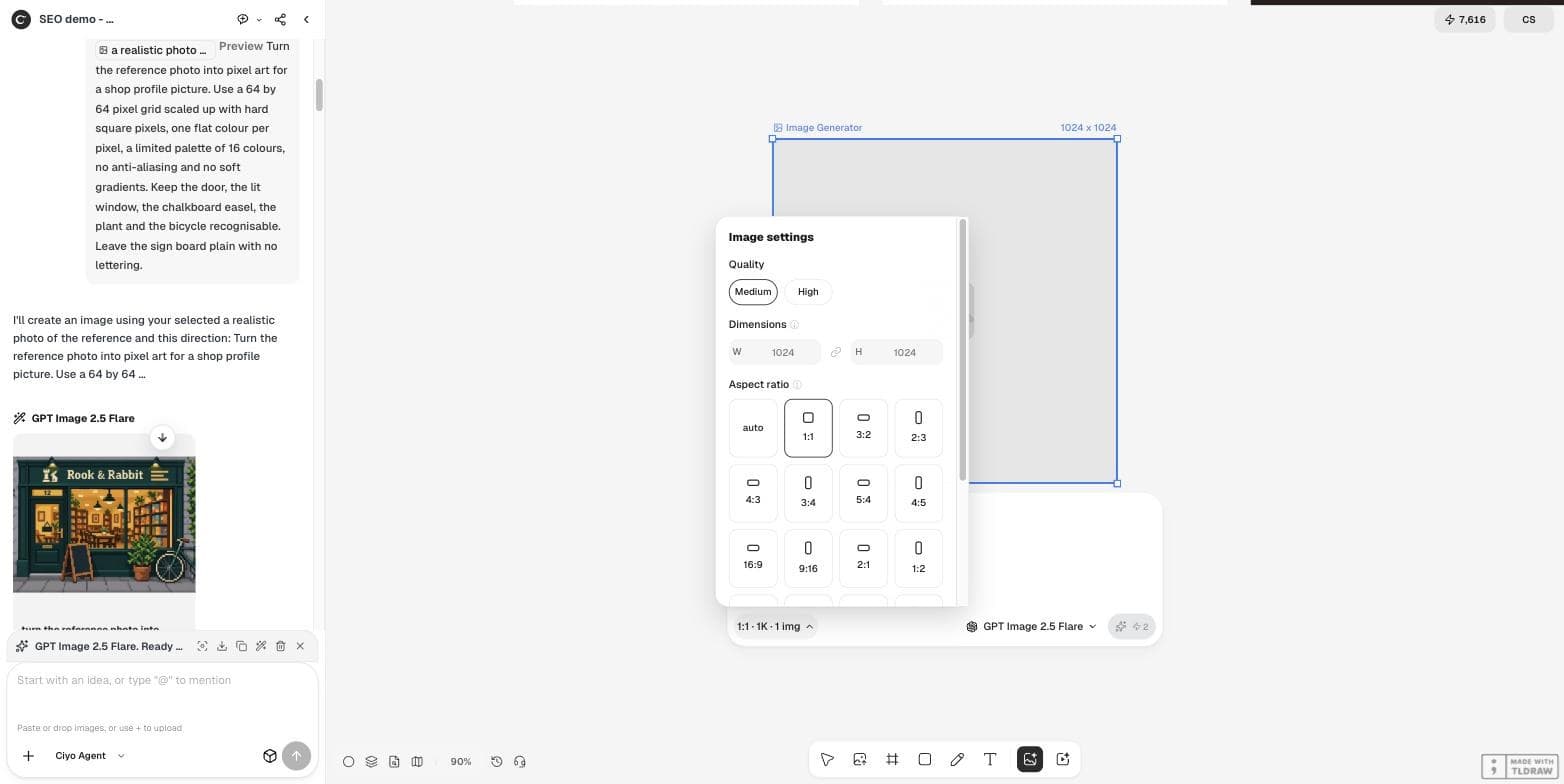
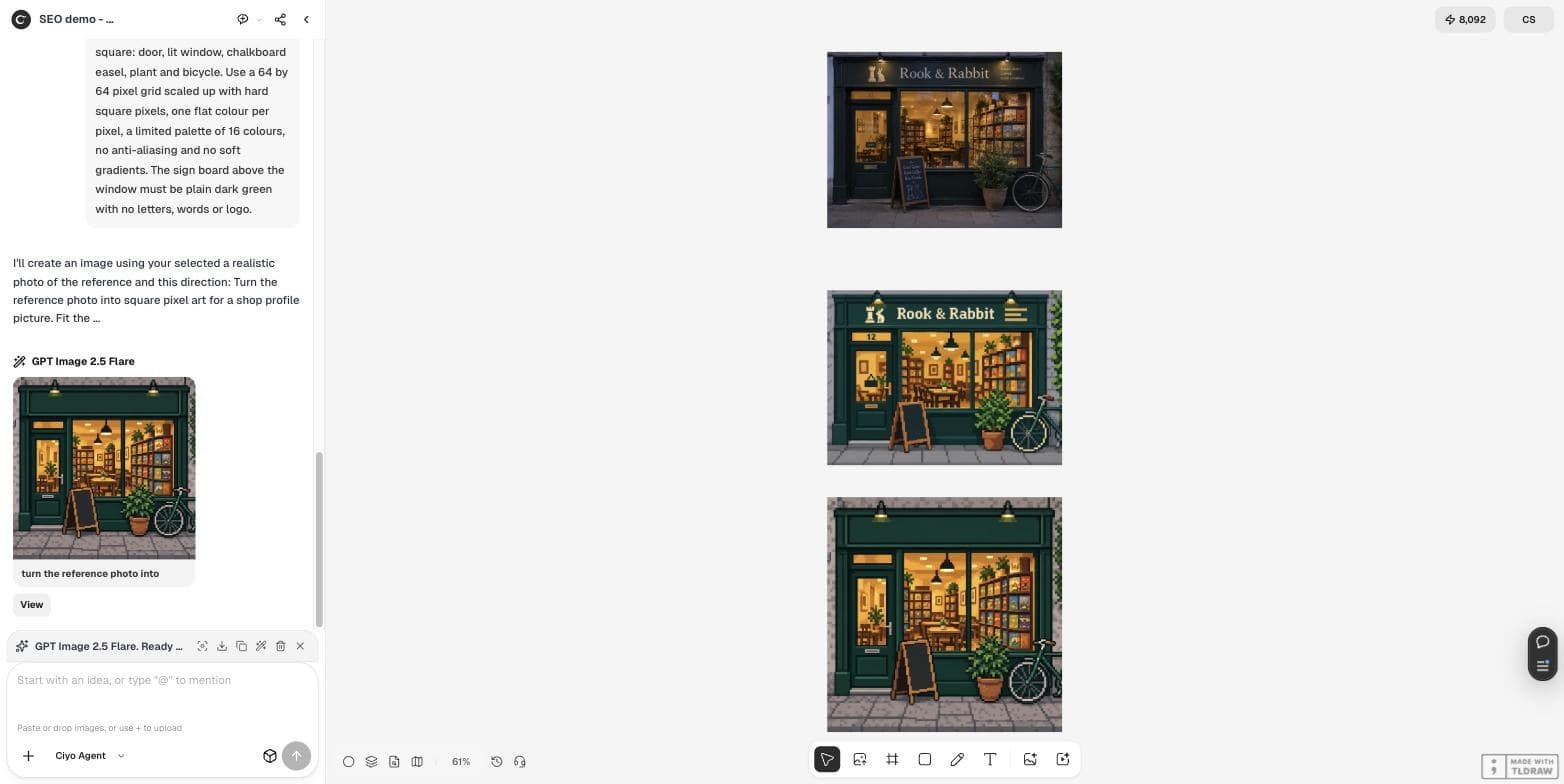
Turn the reference photo into square pixel art for a shop profile picture. Fit the whole shop front inside the square: door, lit window, chalkboard easel, plant and bicycle. Use a 64 by 64 pixel grid scaled up with hard square pixels, one flat colour per pixel, a limited palette of 16 colours, no anti-aliasing and no soft gradients. The sign board above the window must be plain dark green with no letters, words or logo.The second attempt: square and clean, still not a grid
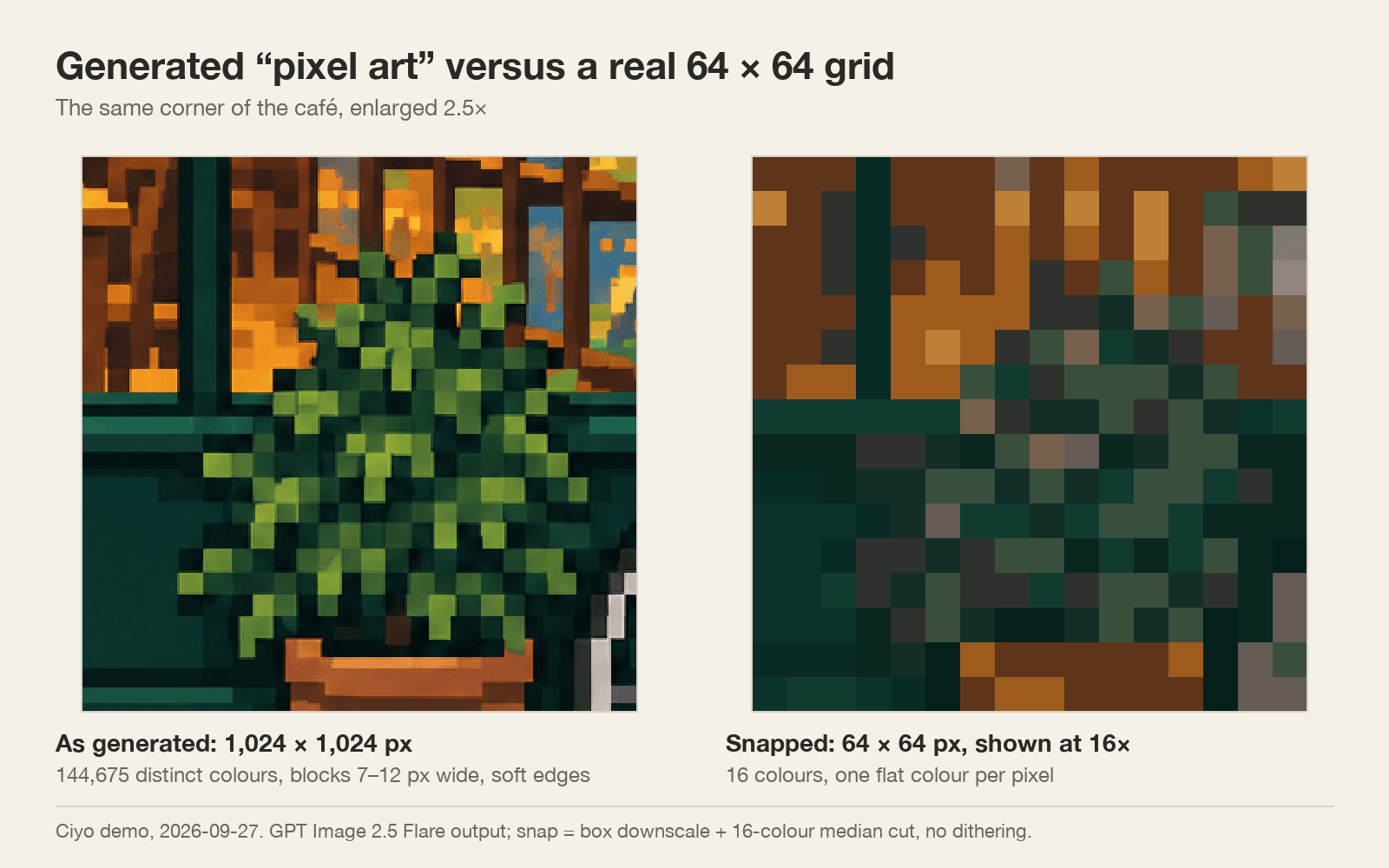
The second run returned 1,024 × 1,024 with a plain sign. The door, window, chalkboard and plant fit; the bicycle is cut by the right edge. Still, the file held 144,675 colours and blocks of 7 to 12 pixels — about 100 blocks across instead of 64.
This is normal for an image model. It paints the look of pixels; it does not place pixels on a grid. If you post the image at full size, few people will notice. If you print it on a tile, stitch it as a bead pattern or use it in a game, you need the real grid.
Snap it to a real 64 × 64, 16-colour grid
The fix takes one step in any pixel editor or a short script: shrink the image to 64 × 64 with an averaging filter, then reduce it to 16 colours with no dithering. We used a median-cut palette. The result is exactly 64 × 64 pixels and exactly 16 colours.
Scale it up only with nearest-neighbour resizing, in whole steps such as 8× to 512 or 16× to 1,024. Any other resize softens the edges again.
Check what the palette did. In our file the plant's light greens merged into the darker greens, so the plant reads flatter than in the painted version. If a detail matters, raise the palette to 24 or 32 colours or recolour that area by hand.
Posted 2026-09-23. The developer offers his own free, open-source pixel-art toolkit, LenkRaster, for reducing the tens of thousands of colours AI pixel art contains to one fixed palette of 48 colours. It is the same problem we measured; our snap uses a generic median-cut step, not his tool, and he has no connection with Ciyo.
A checklist before you use it
Open the final file, not the preview on the canvas, and check four things. Most pixel editors show the image size and the colour count in their image or palette panel.
| Check | Generated (square) | After the snap |
|---|---|---|
| Size | 1,024 × 1,024 | 64 × 64 |
| Distinct colours | 144,675 | 16 |
| Block width | 7–12 px, uneven | 1 px, exact |
| Lettering | None | None |
Photo to pixel art
Can AI turn my photo into pixel art?
Yes. Add the photo as a reference image and describe the grid, palette and shape. Expect a painted look that still needs snapping to a real grid.
Why is my AI pixel art blurry when I zoom in?
The model paints soft, uneven blocks. Our square result had 144,675 colours. Snapping it to 64 × 64 and 16 colours makes every pixel one flat colour.
Why did the result come back landscape?
The ratio was on auto. Choose 1:1 in Image settings; the prompt alone did not control the shape.
How many credits did this take?
Two pixel-art attempts with a reference image cost 3 credits each in Ciyo on September 27, 2026. The snap step costs nothing.
Make your own shop in pixels
Upload a photo, choose 1:1 and generate a pixel-art version in Ciyo, then snap it to your grid.