Product video preparation
Product Photos for AI Video: What to Prepare Before Uploading
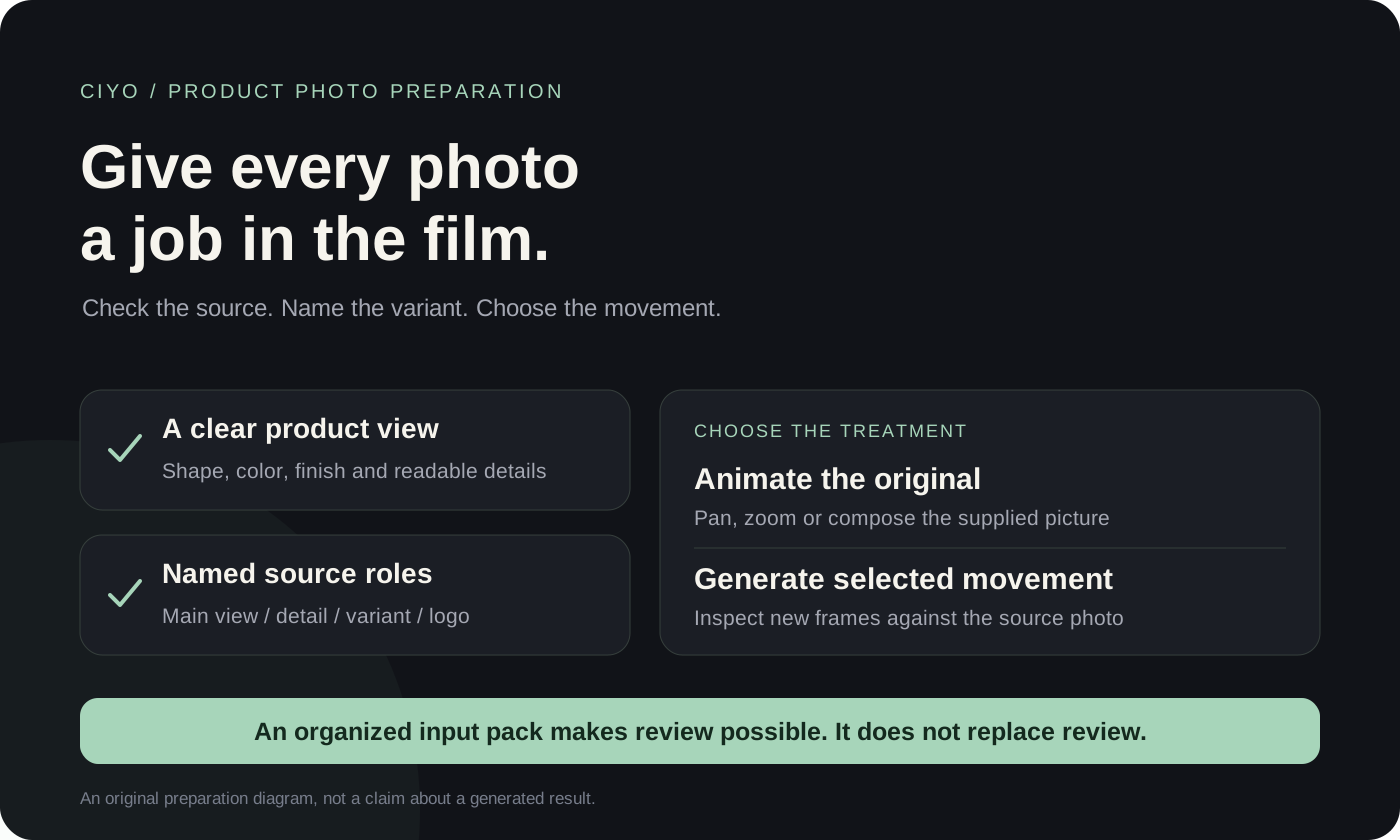
For an AI product video, start with a clear photograph of the exact product variant you want to show. Add the details, alternate views, logo and approved words that the intended scenes require. Keep the originals and label what each file proves. More photos help only when their roles are clear.
This checklist helps a merchant prepare an input pack before briefing a short advertising film. It covers source quality, variant labels, motion choices and a reusable asset inventory. It does not require a fixed number of photos or promise that generated motion will preserve every product detail.
Choose photos for the scenes you need
Choose a clean main view first, then add files that answer a real visual question. If the ad needs to show a label, include a readable label view. If it needs several colors, name each variant. A photo of the front does not verify the back, and a collection shot may not show enough detail for an individual close-up.
There is no universal five-photo requirement. Ciyo’s published yo-yo film happened to use four individual views and a lineup. Your input pack should match your brief and the product cues that need review.
| Source role | Prepare | Use it to check |
|---|---|---|
| Main view | A clear photograph of the exact variant | Overall shape, proportions and visible markings |
| Detail view | A close-up of the label, finish or feature you will show | Small details that may be lost in a wider frame |
| Alternate view | Another actual angle when the planned shot needs it | The surfaces visible during movement |
| Variant or lineup | Separately named colors and an approved collection view | That colors, materials and markings do not migrate between variants |
| Logo and copy | An approved logo source and exact words | Brand spelling, proportions and the final call to action |
Inspect the originals before asking for motion
Open the source at a useful size and inspect focus, edges, reflections, product color and small text. Start from the original file when available rather than a compressed chat preview. A sharper export setting cannot recover a label that is unreadable in the supplied photograph.
For a new shoot, keep the setup steady and use controlled, consistent light. Shopify’s product-photography guidance covers stable camera positioning, white balance and removing visual distractions. Apply those checks to your own product; they are photography preparation, not a guarantee of a video model’s output.
| Check | Ready when | If it is not ready |
|---|---|---|
| Focus and detail | The intended product feature is readable at the required view | Supply a sharper original or avoid a detail shot |
| Edges and crop | Important product parts are visible with room for the planned composition | Choose another source or reduce the camera movement |
| Color and reflections | The file represents the approved finish under understandable lighting | Clarify the correct color and provide another reference |
| Exact variant | The photo is labelled with its color and version | Separate mixed variants before briefing the scene |
| Words and logo | The supplied branding and copy are approved | Obtain a clean source instead of asking the model to invent it |
| Permission | You can use the photos, branding and any visible people for the intended job | Resolve permission before production |
Give each file a name, variant and permitted use
An asset inventory prevents the maker from treating every uploaded picture as an interchangeable style reference. Record the filename, exact product variant, proposed scene role, features to preserve and any unresolved question. Keep the original filename in the list even if you add a shorter working label.
The downloadable CSV contains a blank inventory row and examples based on the published yo-yo case. Replace the example labels with your own filenames. Its “permitted treatment” column is a production instruction, not a claim that a generated clip has already passed review.
| Working label | Source role | Proposed treatment | Review cue |
|---|---|---|---|
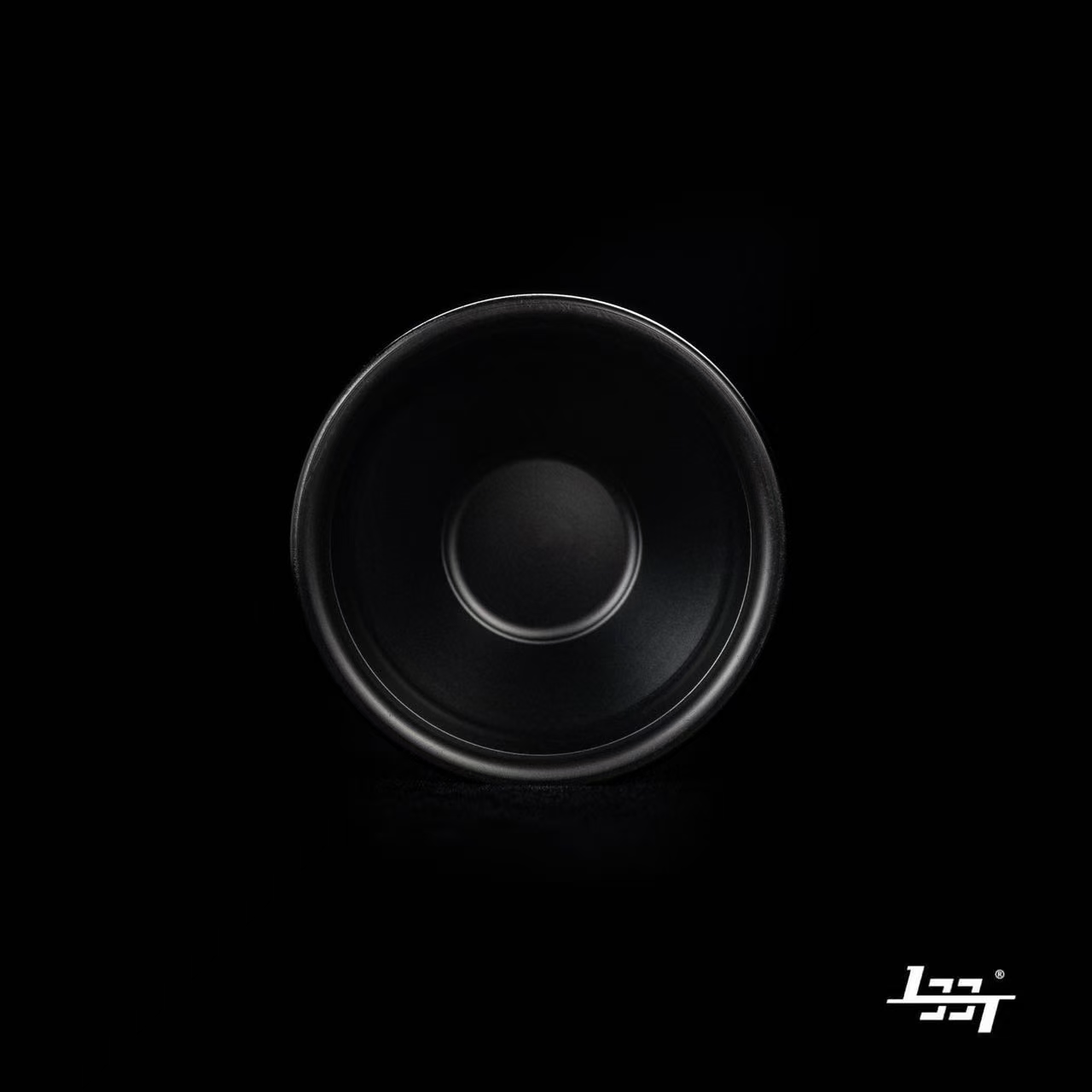
| Black front | Original front photograph | Animate the original picture with a restrained lighting treatment | Keep visible shape and branding readable |
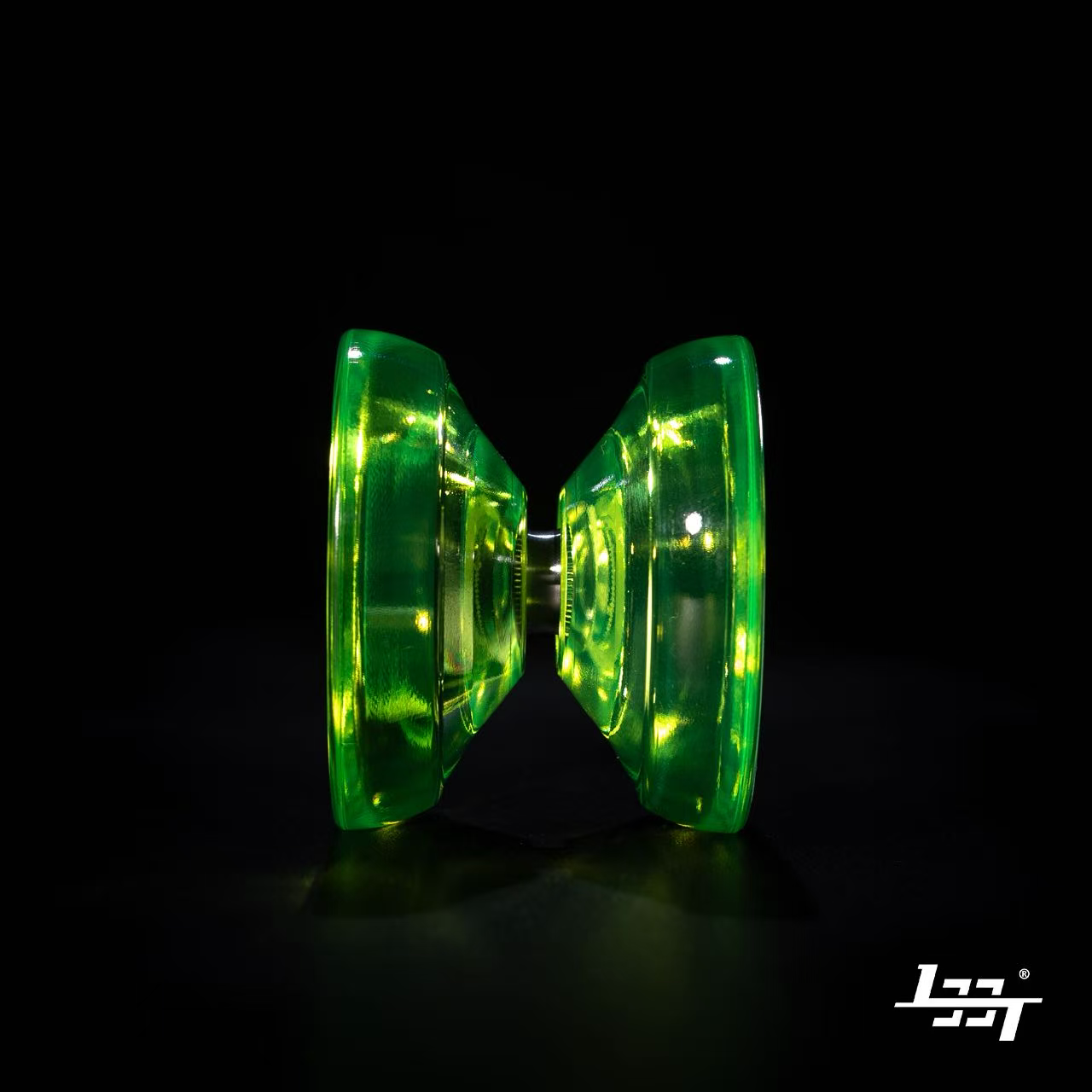
| Green translucent | Starting reference for a selected hero shot | Try a bounded generated movement, then inspect it | Compare body shape, green finish and markings with the photo |
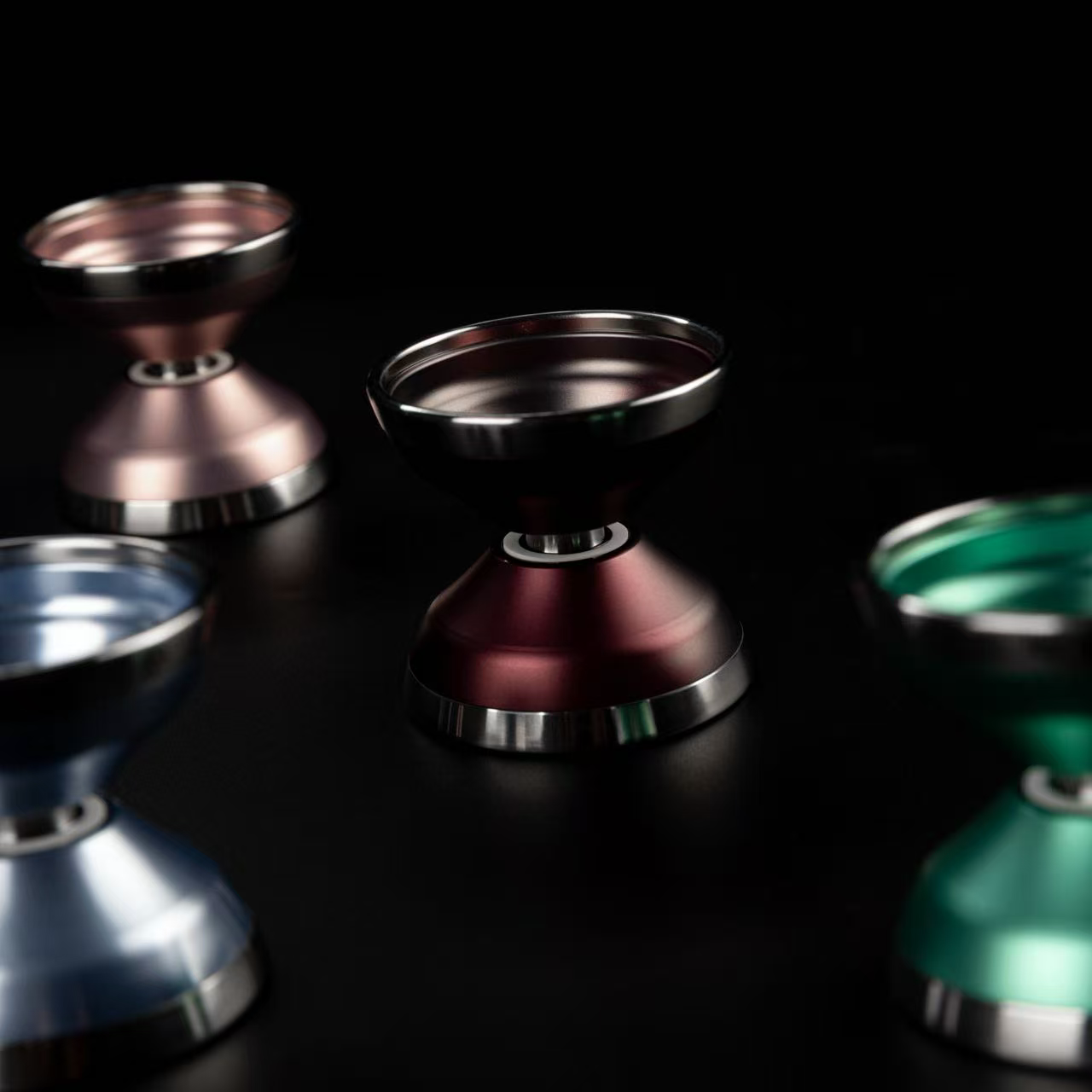
| Collection lineup | Original range photograph | Use a photo-based pan across the collection | Keep the arrangement and colors tied to the source |
Choose photo animation or generated movement deliberately
A photo-based pan or zoom moves the supplied picture within a composition. A generated clip creates new frames from the reference and can introduce details that were not present in it. Choose the treatment according to the scene, then compare the result with the original. Neither an accepted request nor a good first frame proves the entire clip is accurate.
In the existing yo-yo case, the black-front and lineup photographs received photo-based movement, while green, pink and blue references supported three generated hero clips. The original photos below are reused from that case to illustrate these source roles; they are not newly captured inputs or a new side-by-side experiment.
Keep logos and exact words under separate review
Supply a clean logo separately when you have one, together with the exact approved words. Keep a visible logo in a source photograph as an identity reference, but do not assume an image-to-video model will preserve every letter throughout motion. Ask for branding and text placement to be reviewed in the finished composition.
The yo-yo case extracted the original logo for separate brand cards. That is one production approach, not proof that all logo handling is lossless. Check the delivered logo against the source, and agree any new tagline, product claim or call to action before it appears in the ad.
Resolve missing views before approving a shot
If a proposed camera move reveals a surface that no supplied picture shows, identify that gap. Supply another real view, choose a movement that stays within the known view, or treat the result as an unverified concept. Do not use an invented back panel or a fictional product interaction as verified advertising evidence.
Discuss the output ratio before rendering. A square source may need a new composition for a vertical film; keep important product details and approved words visible. Required source dimensions and reference limits depend on the selected model and settings, so check the current upload and generation controls rather than treating one case’s 1280 × 1280 photos as a universal requirement.
Hand the checked input pack to Ciyo
Upload your approved photos, keep the inventory available, and describe the film’s job. Ask the Design agent to identify the source for each proposed shot and explain what is missing before rendering. Resolve the brief and storyboard, then approve a bounded first motion test.
At delivery, compare the encoded film with the original photos and check the actual file’s dimensions, duration and audio. An organized input pack makes those comparisons clearer; it does not establish campaign performance or remove the need to review generated frames.
Help me prepare my supplied product photographs for an advertising video. I will attach the originals, logo and approved words. First list each photo's product variant, useful scene role and visible identity cues. Ask for missing views or unreadable details. Suggest which shots can animate the originals and which need generated movement. Agree the brief and production plan with me before rendering anything.Questions about preparing product photos for AI video
How many product photos do I need for an AI video?
There is no universal count. Prepare a clear main view and the extra details, variants or angles required by your intended scenes. The published five-photo case is an example, not a minimum requirement.
Can I use product photos taken on a phone?
Yes, phone photographs can be useful sources when the required product detail is sharp, the lighting represents the product clearly and the composition supports the planned shot. Inspect the originals instead of judging only by the device used.
Should I supply a separate logo?
Supply an approved clean logo when you have one, plus the exact words that may appear. Review its placement and appearance in the final video rather than assuming generated motion preserves lettering.
Does uploading an accurate product photo guarantee an accurate video?
No. Generated movement creates new frames and can change visible details. Use the original photos to inspect shape, finish, color and markings throughout the clip, then review the actual final export.
Start your product video with a checked input pack
Open Ciyo and attach the product photographs you are approved to use. Ask for an input review and agree the plan before generating motion.