Ciyo · GPT-6
How to Use GPT-6 Astra—and Why It Isn’t Showing

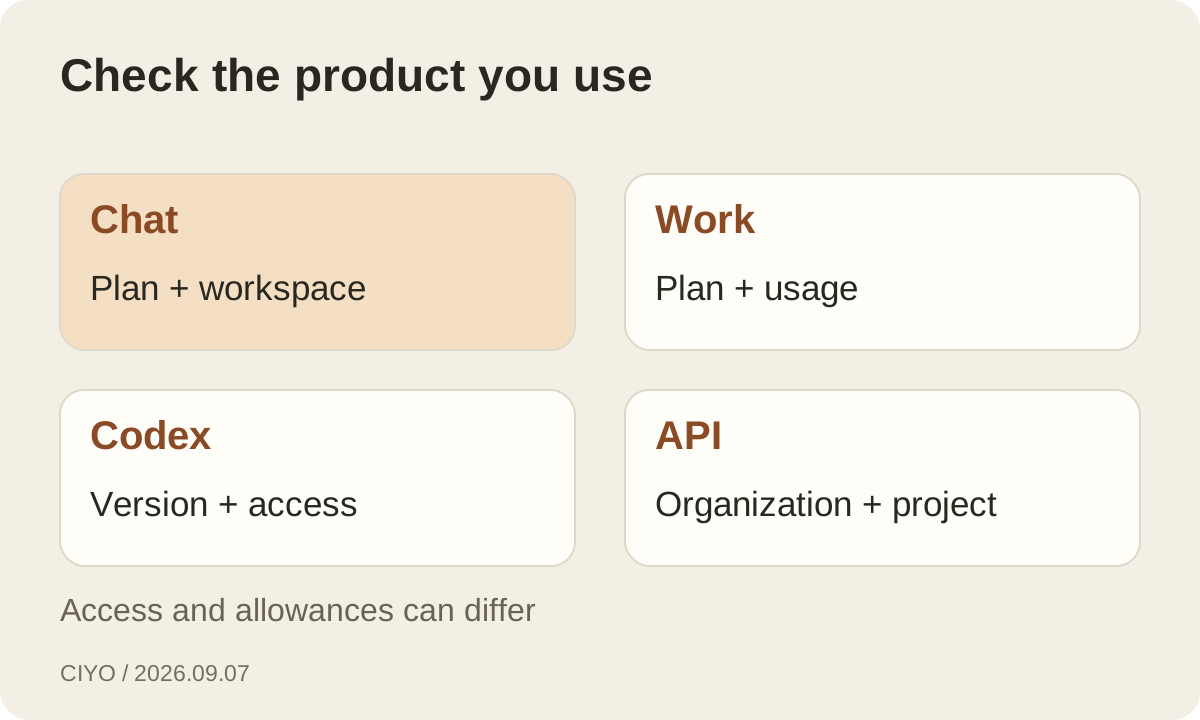
To use GPT-6 Astra, first choose the product where you want to work. In an eligible ChatGPT chat, the model appears as GPT-6 Pro. Work and Codex use Astra naming, while an API request uses gpt-6-astra. Looking for exactly the same label everywhere can send you to the wrong place.
OpenAI is rolling access out gradually. This guide reflects the official access documentation on September 7, 2026. It explains what to check before upgrading a plan, reinstalling an application, or changing an integration.
Pick the route that matches your task
For a conversation, start in ChatGPT and inspect the model options your account actually shows. For a task involving files, research, or a longer deliverable, inspect Work. For a repository or a task involving developer tools, inspect Codex. For a product you are building, check API access in the intended organization and project.
These routes share model technology but have separate access controls and usage rules. A successful Astra task in Codex does not establish that the same account can select GPT-6 Pro in Chat. Equally, an API error does not prove that your ChatGPT subscription is broken. Write down the route before troubleshooting; it narrows the possible causes.
Using GPT-6 Pro in ChatGPT
Sign in to the account with the eligible plan, confirm the active workspace, and inspect the model picker for GPT-6 Pro. The current rollout covers Pro $100, Pro $200, Business, and Enterprise. Enterprise access also depends on workspace model permissions. Availability can reach different products at different times.
Plus users should check Work or Codex for Astra as the rollout reaches them. The current help page does not list Plus for GPT-6 Pro in ordinary Chat. Before paying for an upgrade, confirm that the intended plan includes the product you need and read its model allowance. An upgrade is a poor diagnostic experiment when the underlying issue is the wrong workspace.
Using Astra in Work or Codex
Open the intended task surface, select Astra if your account exposes it, and give it a bounded job with a deliverable. For a creative website task, attach the brand references, specify the pages and viewport sizes, and say what counts as complete. The model can use only the files and tools that the application makes available.
For Codex CLI, OpenAI specifies version 0.153.0 or newer for Astra. Check the installed version with codex --version and update through your normal installation method if necessary. OpenAI also asks users to update the ChatGPT desktop app. After an update, verify the signed-in identity and model selection again; updating software does not grant account entitlement.
Using Astra in an API application
The documented API model ID is gpt-6-astra. Start with a small text request in the intended organization and project before adding a large file collection or complex tools. The model documentation lists Responses, Chat Completions, and Batch support; OpenAI’s latest-model guide uses Responses for getting started.
Treat access, request compatibility, and application behavior as separate checks. Astra’s supported reasoning levels start at low and include medium, high, xhigh, and max; it does not list none. Copying a configuration from another model can therefore fail even when the model is available. Inspect the actual error and the current reference rather than removing parameters at random.
Keep API credentials on the server, and share redacted errors when requesting help. A useful diagnostic includes the endpoint, model ID, client version, timestamp, project identity, and request ID when available. An API key or a full private customer brief is unnecessary for a public troubleshooting post.
If Astra is missing, check identity before software
First inspect the signed-in email and active workspace. A personal account and a company workspace can expose different models even in the same application. Then compare your plan with the availability page for the exact surface. If the plan is eligible, check the application version and whether the rollout has reached that surface.
For a managed workspace, ask the administrator to inspect both model availability and your role’s permissions. OpenAI’s enterprise guide distinguishes Chat, Work, Codex, and API access and explains that a model setting alone does not grant access. Some initial enterprise availability is tied to the Daybreak program. A model visible to a colleague may still be unavailable to your role or workspace.
| Symptom | Check next |
|---|---|
| No GPT-6 option in Chat | Chat plan eligibility, workspace, rollout |
| Astra appears in one product only | That product’s separate access rules |
| CLI does not offer Astra | Installed version, identity, model access |
| API request is rejected | Project access, model ID, error details |
| Model was available and is now limited | Usage dashboard and displayed reset |
If it disappeared, inspect usage and service state
Reaching a model allowance can temporarily change which options are available. Chat’s Pro-model allowances and Work/Codex usage are separate. Check the displayed reset time and the applicable dashboard before assuming a model has been removed from your subscription. Switching between models that share an allowance does not create fresh usage.
Record the exact error or banner before refreshing or reinstalling. If several features fail at once, consult OpenAI’s service-status page linked from its Help Center. If only one project fails, focus on that project’s access and configuration. This preserves evidence and avoids changing several variables before you know which one matters.
Make the first task small enough to verify
Once Astra is available, try an illustrative creative task: review an existing landing-page screenshot and produce a prioritized revision brief. Supply the target audience, conversion goal, and the elements that must stay. Ask for observations tied to visible evidence and a clear distinction between an observed problem and a suggested experiment.
Review that result before authorizing implementation. In an agent application, access to tools and approval settings determines what it can do next. File access, network access, and permission to publish are separate concerns. Give the task the resources it needs, then verify the final artifact in the browser or exported file rather than accepting a completion message alone.
Choose a useful next step when access is unavailable
If the account is eligible but the rollout has not reached it, use an available model for work that can proceed and retain the brief for later comparison. If the blocker is a workspace permission, send the administrator the product name and observed symptom. If an API request fails, reduce it to a reproducible example before escalating.
For a task whose only deliverable is an image, a dedicated image tool may already meet the requirement. Ciyo offers GPT Image 2 independently of whether Astra appears in your OpenAI account. Choose that route for image production on its own merits; it does not unlock GPT-6 access.
Continue reading
Questions about accessing Astra
Why can I use Astra in Codex but not ChatGPT Chat?
Availability and allowances differ between products. Plus currently includes Astra in Work and Codex as it rolls out, while GPT-6 Pro in Chat has a different eligibility list.
What is the GPT-6 API model name?
The documented model ID is gpt-6-astra. Use it in a supported API endpoint and verify that the intended organization and project have access.
Will reinstalling the app unlock Astra?
An update can fix an unsupported client version. It cannot grant a missing plan entitlement, workspace permission, or rollout access. Check those separately.
Keep your image project moving
If you already have a clear image brief, explore Ciyo’s generation and editing tools while you resolve access to Astra in the product you need.