GPT-6 Astra · Creative workflows
Can GPT-6 Astra Make Videos? Creation, Editing and Limits

GPT-6 Astra can help make a video when its environment provides the necessary tools. That does not mean the base model directly returns video pixels. OpenAI lists text and image input and text output for Astra, alongside supported tools. A useful answer therefore starts with the actual deliverable: a storyboard, a rendered clip, or an edited MP4.
For a small campaign, separate the work into a shot plan, approved visual assets, motion generation and an export check. This guide uses a fictional desk-lamp launch to show what to ask for at each handoff. The workflow is an editorial example, not a measured end-to-end Astra production run.
Choose what ‘make a video’ means
A request for a fifteen-second ad contains several different jobs. Astra may write the script, inspect reference images, prepare code for an editing tool, or coordinate available tools. The environment determines whether it can execute those steps. Ask it to identify the tools it can actually use before promising a finished video.
| Deliverable | Astra's role | What must exist |
|---|---|---|
| Storyboard | Write shots, timing and visual instructions | A clear brief and references |
| New motion clip | Prepare inputs and direct an available generator | A video-generation tool and its supported settings |
| Edited footage | Plan cuts or execute an editing workflow | Source files and an editor or execution environment |
| Final MP4 | Check the rendered artifact | An exported, playable file |
Start with three shots and one product
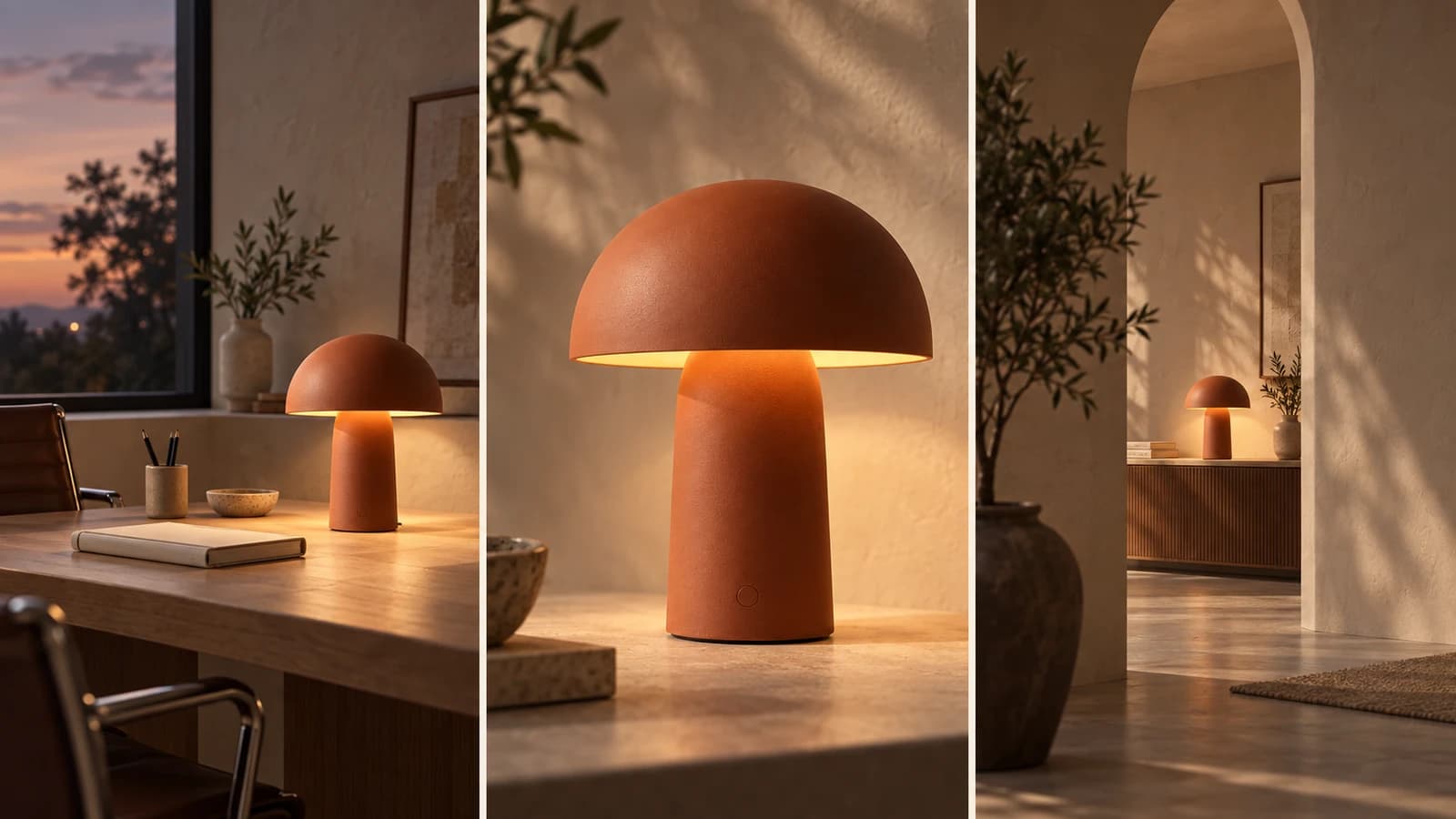
For the fictional Still lamp, plan a quiet room opening, a closer product shot and a closing title. Give every shot a duration, camera direction and subject constraint. Keep the lamp silhouette, finish and proportions consistent. A mood adjective such as ‘premium’ does less work than an approved reference plus a concrete composition.
Approve the still frames before rendering motion. If the product is already wrong in a still, animation adds another variable. For a real product, use authorized product photography as the identity reference and inspect the generated output against it.
Give the agent a production contract
Make the output format and handoff explicit. If a required generator is unavailable, a useful result is a shot list and ready-to-use prompts with the missing step identified. Calling that a finished video would hide work you still need to do.
Create a production plan for a 15-second Still desk-lamp ad. Audience: home-office workers. Three shots, 5 seconds each. Preserve the supplied lamp silhouette and terracotta finish. Deliver a shot table, motion prompt per shot, exact on-screen copy and export checklist. Identify available generation/editing tools first. Execute only the steps those tools support. If you render a file, provide its path and inspect playback, duration, dimensions and audio. Label any unexecuted step.Keep generation and editing failures separate
A warped lampshade is a visual-generation problem. An abrupt cut is an edit problem. Missing audio may be a source, timeline or export-setting problem. Rerunning the whole production for each defect can waste both time and paid generations.
Save approved clips separately. When only the closing caption is wrong, replace that caption in the edit if the workflow permits it. Keep a small version log recording the changed input and the defect you were trying to fix. This makes it easier to decide whether a new motion generation is justified.
Review the exported file, not the progress message
Open the actual export and watch it from beginning to end. Check the first and last frames, product continuity, caption spelling and whether the final title remains readable long enough. Then check technical properties against the destination: aspect ratio, dimensions, frame rate, duration and audio.
A tool reporting success proves a process completed; it does not prove the video meets the brief. If you are comparing workflows, record time to an accepted export, including retries and manual fixes. Do not infer a general speed advantage from one successful clip.
| Check | Acceptance condition |
|---|---|
| Identity | The product matches the approved reference throughout |
| Message | Exact copy is readable within the allotted time |
| Delivery | The exported file plays and matches the destination format |
| Traceability | Keep inputs, prompts and selected output versions |
Move an approved image into a motion workflow
Ciyo has an image-to-video workflow for turning a selected still into motion. It can be a practical next step after you have approved your campaign image. Review the available model and settings in the tool before generating; a storyboard alone does not guarantee that every requested camera move is supported.
Choose GPT-6 Astra as Ciyo’s design agent to plan a storyboard and direct its existing video tools. Astra handles the creative conversation; the selected video model generates the clip. Sign in to send your brief, then use the displayed credit price for generation.
- Explore Ciyo image-to-video
- Develop the source image with a clearer prompt
- GPT-6 Astra’s Aevra Car Ad: The Workflow Reddit Asked For
- GPT-6 Astra’s Five-Minute Launch Video: The Shared Workflow
- GPT-6 Astra’s 55-Clip Edit: Prepare the Footage It Needs
- GPT-6 Astra, GPT Image 2.5 and Seedance 2.5: Still to Video
Put your visual brief to work
Have an approved campaign still? Explore the available image-to-video options in Ciyo and build the next shot from that reference.