Choosing a creative workspace
Infinite canvas vs artboard: choose your working space
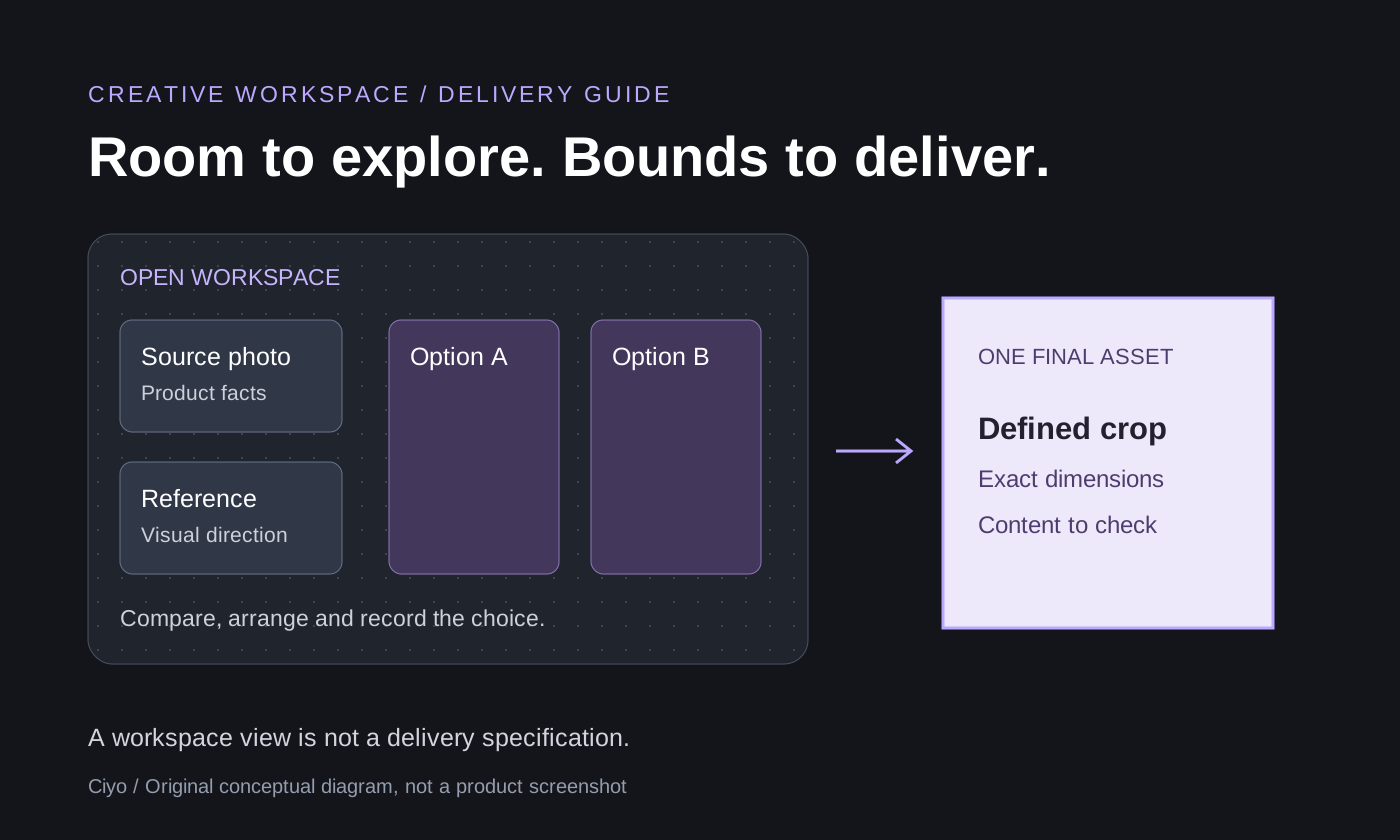
An infinite canvas is a workspace you navigate by panning and zooming, with room to arrange material beyond one page-sized view. A fixed artboard gives a design a defined boundary, such as a square social image. The canvas helps you explore and compare; the artboard defines what belongs in one composition.
You may use both ideas in one project. Keep references, alternatives and review notes together while you work, then check the selected asset against its actual delivery requirements. This guide explains the choice and its limits. For the clicks used to align and group items in Ciyo, follow the separate campaign review-board tutorial.
An open workspace and a final composition answer different questions
The workspace answers: what do I need to see to make this decision? A product photograph, a style reference, two generated concepts and the reason for choosing one may all be relevant. Their relative position can make that relationship easier to read without putting every item into the final design.
The composition answers: what will the audience actually receive? A social image needs a defined crop and readable copy. A film needs a chosen aspect ratio and duration. Zooming out to fit the board on your screen does not establish either of those delivery specifications.
Here, infinite describes the way you navigate and arrange work. It is not a promise of unlimited storage, rendering capacity or export size. Practical limits depend on the application, the material and your device.
Which working space fits the task?
Use an open board when the relationships between assets matter. Use a defined composition when you need precise boundaries for one result. These are working patterns rather than mutually exclusive product categories: an application may offer an open canvas and bounded areas within it. Check its actual controls for your handoff requirements.
| Task | Useful working pattern | Acceptance check |
|---|---|---|
| Compare two concepts against the same references | Open canvas with the sources and candidates visible | Can you identify the chosen version and explain why? |
| Design one square social image | A composition with a fixed square boundary | Inspect the actual crop, dimensions and readable content |
| Explore a set of related images and possible video shots | Open canvas for the relationships; separate delivery checks | Each chosen asset has a purpose and a defined output |
| Prepare an exact print or editable-file handoff | A tool with the required layout and export capabilities | Verify the real file type and production specifications |
| Review a large collection on a small screen | A focused board area or smaller project | Keep the current decision readable without inspecting every asset |
Keep workspace context out of the final asset
Suppose a notebook campaign contains a supplied product photo, a borrowed style reference and two candidate images. The source photo establishes what the product looks like. The reference explains lighting or framing. The candidates are proposals. Only the selected candidate is a possible deliverable, and it still needs review.
Use a short nearby text note to record roles and the current choice. Arrangement alone can be ambiguous: the biggest image might be the reference, not the approved version. Keeping an obsolete candidate next to the selected one is useful only if the distinction remains clear.
The downloadable worksheet records those roles and the required final file. It is a planning aid, not a Ciyo status system or an automatic export preset. For an illustrated walkthrough of arranging real cards, use the existing review-board guide rather than treating this conceptual diagram as a product interface.
What this looks like in Ciyo
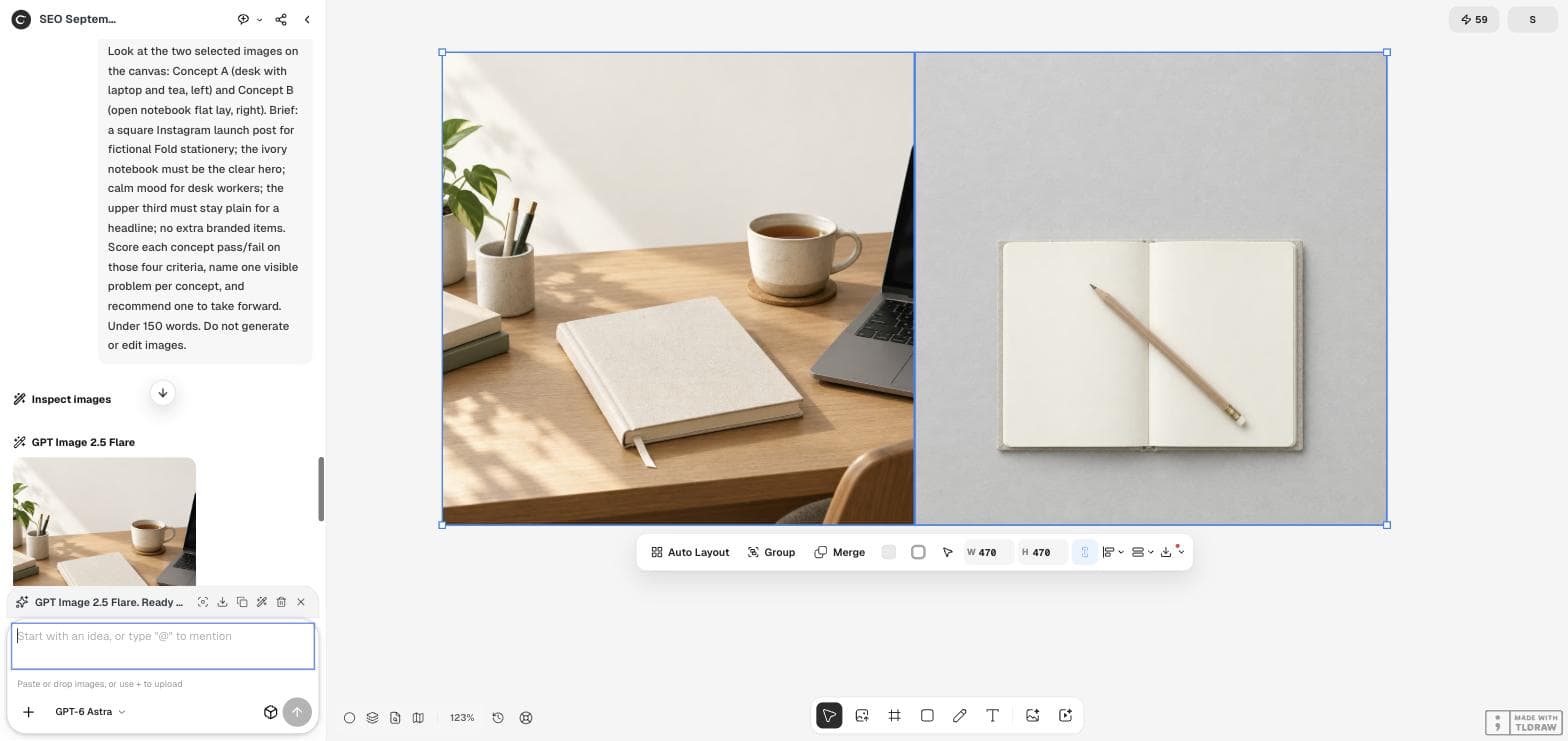
Ciyo's canvas keeps images and video alongside a conversation about the work. You can pan, zoom, move related items and use grouping to keep a set together. The design agent can help plan and review a task; manual organization remains useful when deciding which source and version you mean.
The September 18 concept-review case shows two notebook alternatives selected in the actual workspace. The review concerns whether each concept fits the brief, not whether the whole board should be exported as an advertisement. The full article records the recommendation and an unresolved product-visibility issue.
Do not infer automatic execution from a spatial arrangement. Putting images next to each other does not make one generate another, and a group of images is not proof of native editable typography. This guide makes no claim about simultaneous collaboration or automatic approval.
Bring only the context needed for the current decision
An open workspace becomes harder to review when unrelated drafts compete for attention. Begin with the source that establishes the facts, the reference that explains the direction and the alternatives you are actually comparing. You can retain other explorations elsewhere without making them part of every review.
Ask what is missing before creating more assets. If the product is unclear, obtain the right source photo. If the alternatives are already visible, request a focused comparison. If the choice is settled, work on the specific remaining revision and delivery check. More space does not require more generation.
Check the output independently of the board
Before handing off, identify the selected asset by name and inspect the actual downloaded file. Check its dimensions, crop, text and visible product details. For video, also check duration and audio. A good-looking screenshot of the workspace cannot establish those properties for the delivery.
If your project requires a file format or a native editable structure, confirm support before committing to that workflow. Keep the board as working context and the final file as a separate item to inspect. When the goal is a product-photo video advertisement, the existing solution page connects preparation, production and export guidance.
Questions about an infinite canvas
What does infinite canvas mean?
It describes a workspace navigated by panning and zooming, where you arrange material beyond a single page-sized view. It does not mean unlimited storage, performance or export dimensions.
Can an infinite canvas replace an artboard?
It can hold the material you explore, but a finished image still has bounds and delivery requirements. Whether an application supports the exact layout or export you need depends on its controls. Verify the resulting file.
Does grouping images make a finished layout?
Grouping helps move related items together. It does not by itself approve the content, set delivery dimensions or make text inside a raster image into native text. Review the actual selected asset separately.
Where should I start in Ciyo?
Start with one decision and a small set of relevant references or alternatives. Use the campaign review-board walkthrough for alignment and grouping, or open a short agent draft to describe what you want to compare. Planning and generation can consume credits.
Start with one visual decision
Open a short draft and describe the assets you want to compare. Add your own references and edit the request before signing in and choosing Send. Planning and generation can use credits.